
This guide helps Staff using the Shared Mailbox.
What are shared mailboxes?
A shared mailbox is a type of user mailbox that doesn't have its own username and password. As a result, users can't log into them directly. To access a shared mailbox, users must first be granted Send As or Full Access permissions to the mailbox. Once that's done, users sign into their own mailboxes and then access the shared mailbox by adding it to their Outlook profile. In Exchange 2003 and earlier, shared mailboxes were just a regular mailbox to which an administrator could grant delegate access.
For Details: Shared mailboxes | Microsoft Learn
In CEIBS, we recommend converting public mailboxes to shared mailboxes and using shared mailboxes with user authorization.
The usage scenarios are divided into:
- Use Shared Mailbox in Classic Outlook - Windows
- Use Shared Mailbox in Outlook on the web
- Use Shared Mailbox in Outlook Mobile
- Use Shared Mailbox in Legacy Outlook for Mac - macOS
Prerequisites:
You already have the FullAccess and SendAs permissions for this shared mailbox. If not, please submit an application via the IT process on the intranet.
1. Use Shared Mailbox in Classic Outlook - Windows
- Sign in with the user's profile
Only applicable to the following scenarios: 1. When the user's primary mailbox is an Exchange Online (EXO) mailbox and wants to add an EXO shared mailbox. 2. When the user's primary mailbox is an Exchange On-Premises mailbox, and they want to add a on-premises shared mailbox.
-
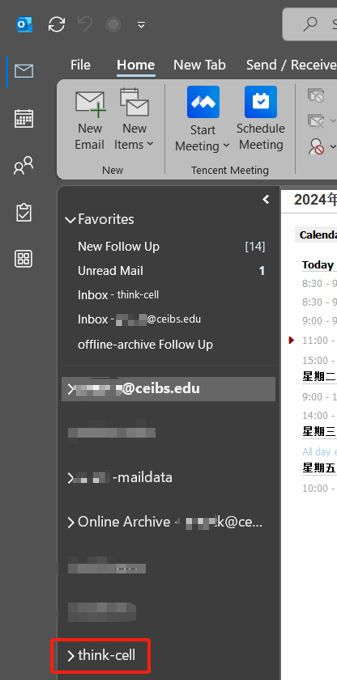
- The shared mailbox automatically appears in the mailbox list on the left side of Outlook. If the IT admin only recently added you to a shared mailbox, it may take a few minutes before the shared mailbox appears. Wait a bit and then close and restart Outlook.
- If that didn't work, then manually add the shared mailbox to Outlook:
- Open classic Outlook.
- Select the File tab on the ribbon, then select Account Settings > Account Settings.
- Select the Email tab.
- Make sure the correct account is highlighted, then choose Change.
- Choose More Settings > Advanced > Add.
- Type the shared email address, such as
This email address is being protected from spambots. You need JavaScript enabled to view it. .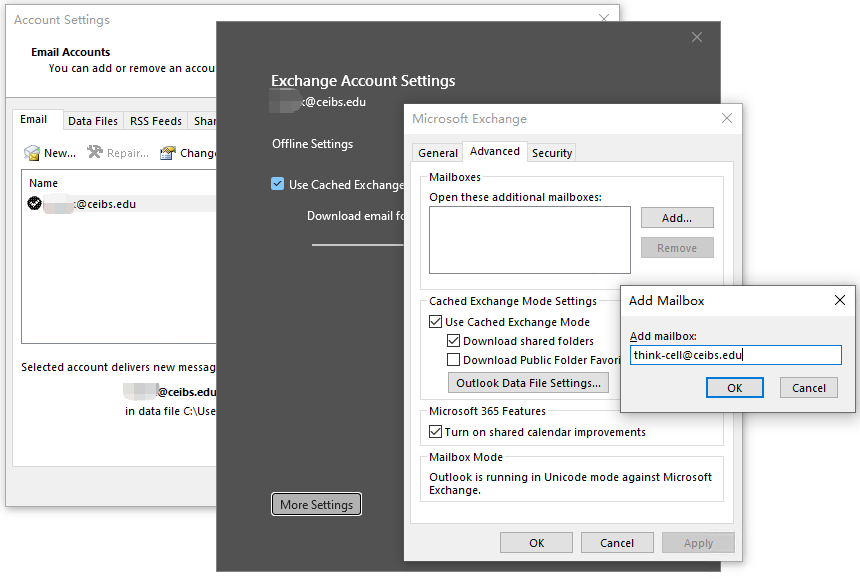
- Choose OK > OK.
- Choose Next > Finish > Close.
- The shared mailbox automatically appears in the mailbox list on the left side of Outlook. If the IT admin only recently added you to a shared mailbox, it may take a few minutes before the shared mailbox appears. Wait a bit and then close and restart Outlook.
- Sign in with the profile of the shared mailbox
-
- Open classic Outlook.
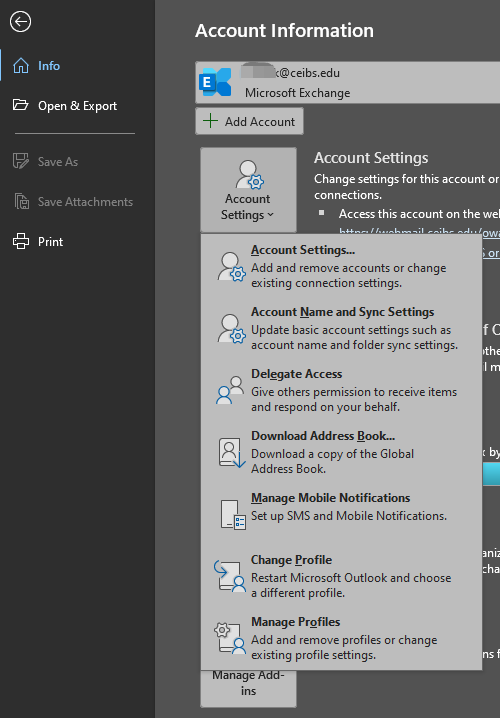
- Select the File tab on the ribbon, then select Account Settings > Manage Profiles.
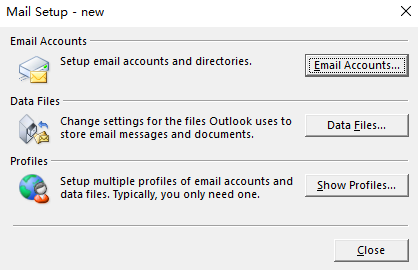
- Select Show Profiles.
- Check Prompt for a profile to be used, select Add.
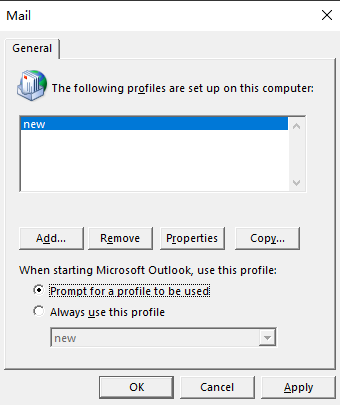
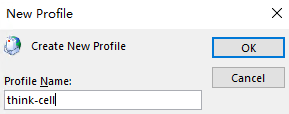
- Enter Profile Name, as think-cell, select OK.
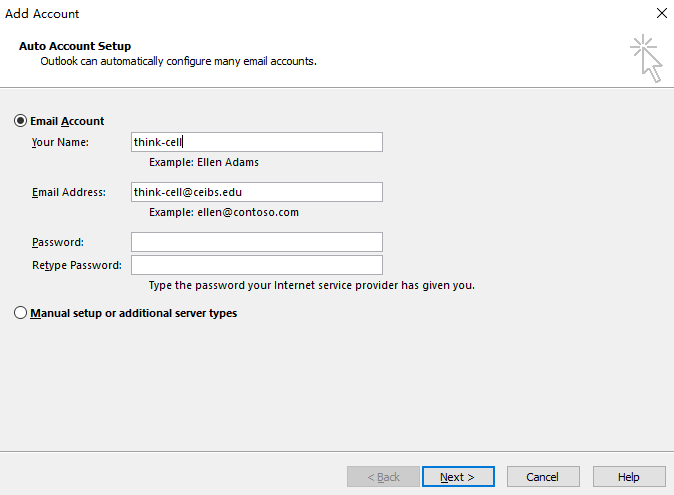
- Enter the Name of Email Account, Email Address, and your own email Password, then select Next.
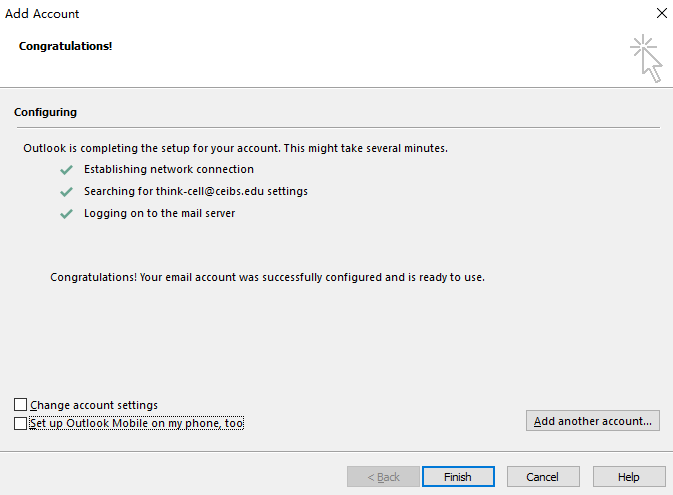
- Configuration successful. Uncheck Set up Outlook Mobile on my phone, too, then select Finish.
- Select OK, Reopen classic Outlook.
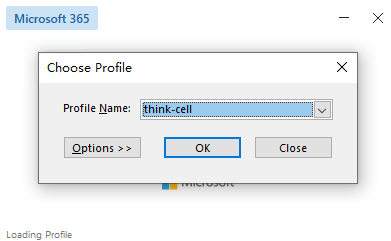
- Select the profile of the previously created shared mailbox, then select OK.
2. Use Shared Mailbox in Outlook on the web
Sign in to your account in Outlook on the web (Webmail.ceibs.edu).
-
- Add the shared mailbox so it displays under your primary mailbox.
- For Exchange Online mailboxes, right-click Folders in the left navigation pane, and then choose Add shared folder or mailbox.
For Exchange on-premises mailboxes, right-click the name of your primary mailbox in the left navigation pane, and then choose Add shared folder or mailbox.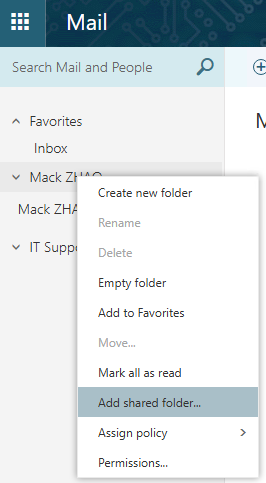
- In the Add shared folder dialog box, type the name of the shared mailbox you are a member of, such as
This email address is being protected from spambots. You need JavaScript enabled to view it. .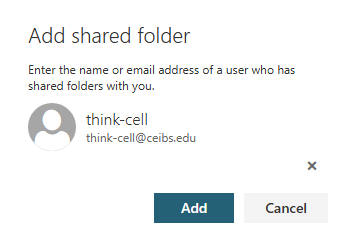
- For Exchange Online mailboxes, right-click Folders in the left navigation pane, and then choose Add shared folder or mailbox.
- Add the shared mailbox so it displays under your primary mailbox.
-
- Open the shared mailbox in a separate browser window.
- At the far right of the Webmail navigation bar, click your profile picture. A list appears.
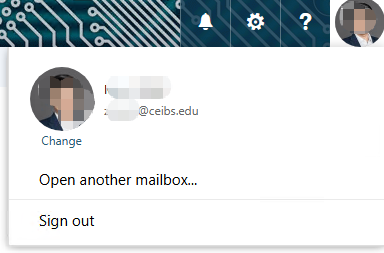
- Select Open another mailbox.
- Type the email address of the other mailbox that you want to open, and then select Open. Another Outlook on the web session opens in a separate window, allowing access to the other mailbox.
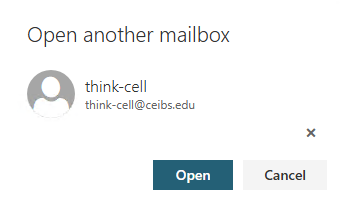
- At the far right of the Webmail navigation bar, click your profile picture. A list appears.
- Open the shared mailbox in a separate browser window.
3. Use the Shared Mailbox in Outlook mobile
Only applicable to one scenario: The user's primary mailbox and shared mailbox must both be of the Exchange Online type.
- Sign in to your primary account in Outlook for iOS or Android.
- Tap the Add Account button in the left navigation pane, then tap Add a Shared Mailbox.
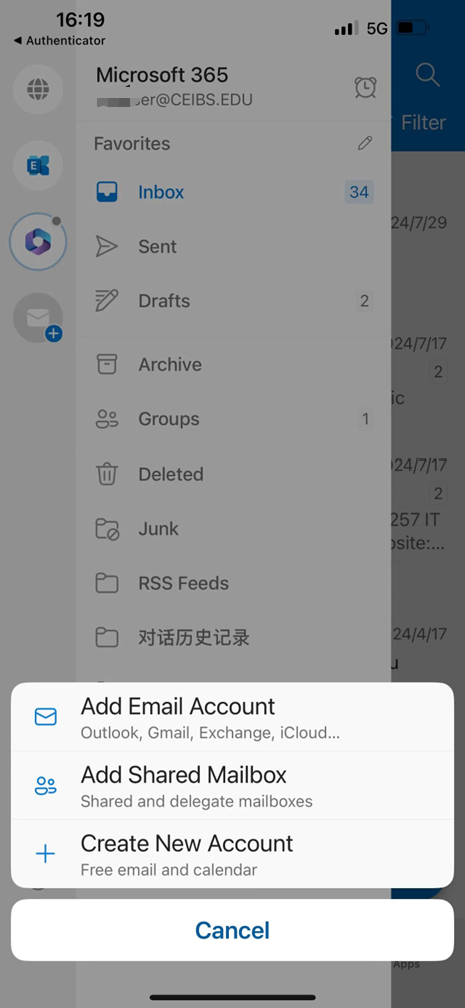
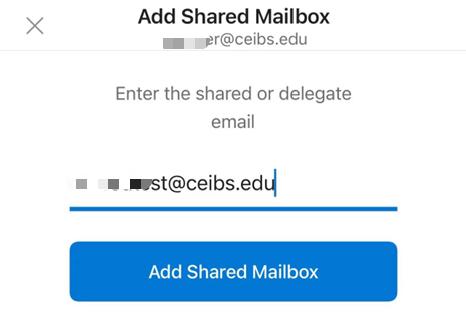
- If you have multiple accounts in Outlook Mobile, select the account that has permissions to access the shared mailbox. Enter the email address of the shared mailbox, select Add Shared Mailbox.
4. Use Shared Mailbox in legacy Outlook for Mac - macOS
Applicable to the following scenarios: 1. When the user's primary mailbox is an Exchange Online (EXO) mailbox and wants to add an EXO shared mailbox or a on-premises shared mailbox. 2. When the user's primary mailbox is an Exchange On-Premises mailbox and wants to add a on-premises shared mailbox or an EXO shared mailbox.
Open the legacy Outlook for Mac.
-
- You are a delegate for the shared mailbox
- On the Tools menu, click Accounts > Advanced > Delegates.
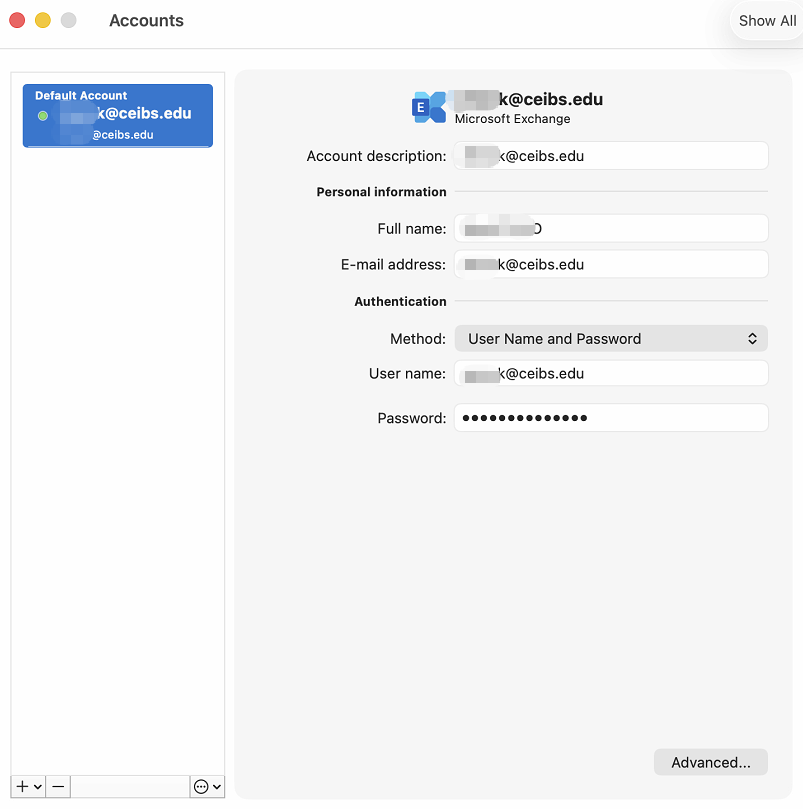
- Add the mailbox under Open these additional mailboxes.
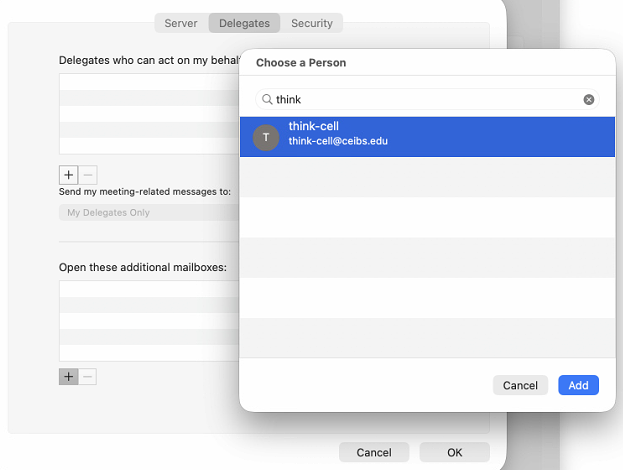
- On the Tools menu, click Accounts > Advanced > Delegates.
- You are a delegate for the shared mailbox
-
- You have full access permissions to a shared mailbox
- On the Tools menu, click Accounts.
- Click the Plus Sign > Add an Account.
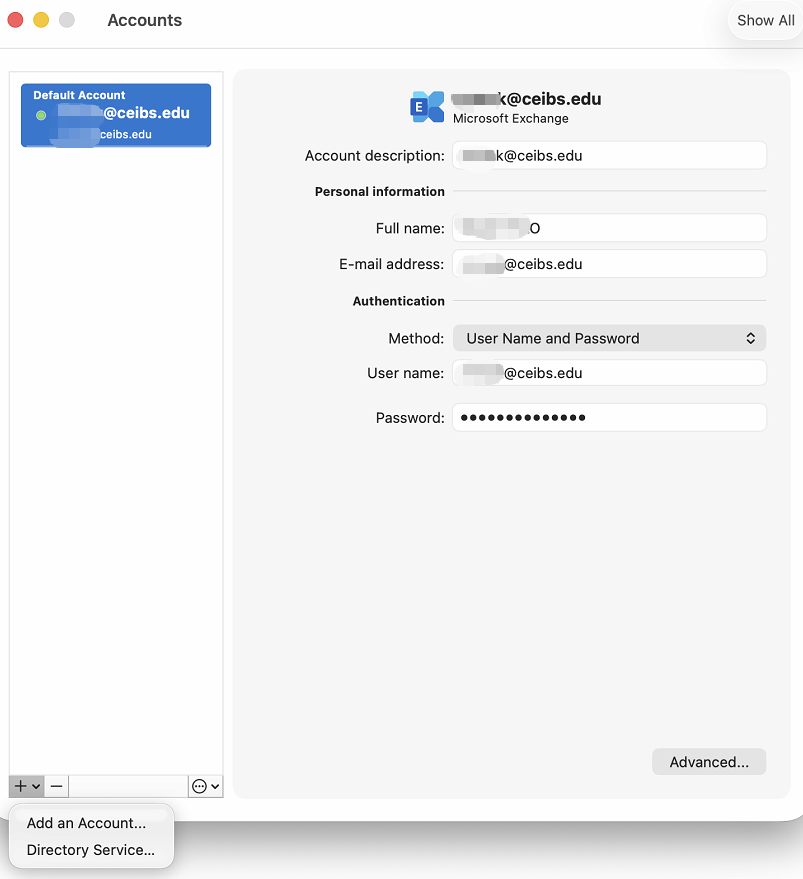
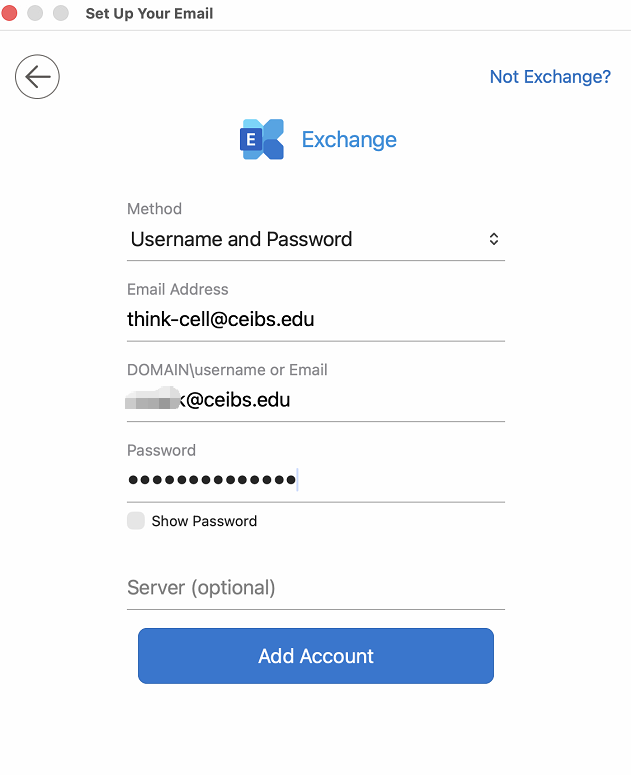
- In the Email Address field, enter the email address of the shared mailbox, then select Continue.
- In the DOMAIN\username or Email field, enter your own email address, in the Password field, enter your own password, then select Add Account.
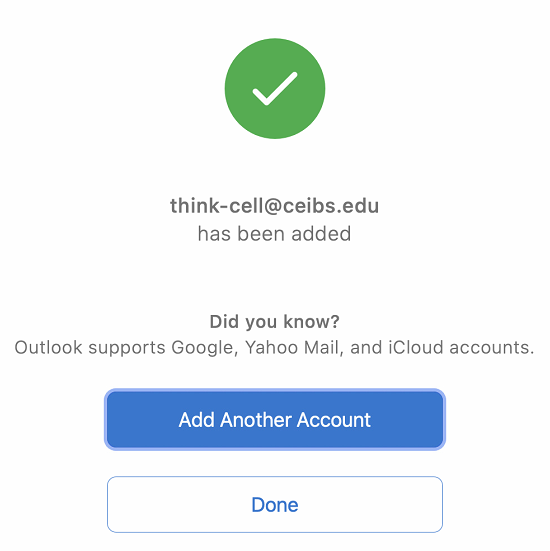
- Added successfully, select Done.
- You have full access permissions to a shared mailbox