
CEIBS provides email services for faculty, staff, and students. You can set it up on Outlook for desktop devices.
Important Notes:
The desktop version of Outlook that supports CEIBS email accounts is classic Outlook . The pre-installed version of New Outlook
 for Windows does not support CEIBS email accounts.
. The pre-installed version of New Outlook for Windows does not support CEIBS email accounts. For Faculty, Staff, and MBA & GMiM students: Please follow this guide to download and install Microsoft 365 Apps.
For other Students: Please make sure the following Office versions are installed and working properly on your PC: Office 2016|2019|2021|2024|Microsoft 365 Apps for enterprise.
Set up CEIBS Email
-
Open the classic Outlook on Windows.
-
Add a new account in classic Outlook. (Please go to Step 2, enter the CEIBS email address.)
-
Set up another email account in classic Outlook.
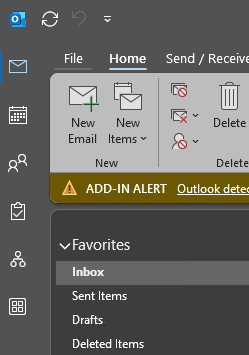
- Select File.
-
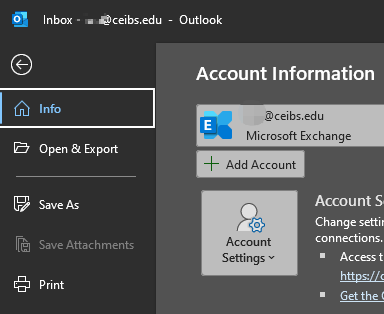
Go to Info, Select Add Account.
- Select File.
-
-
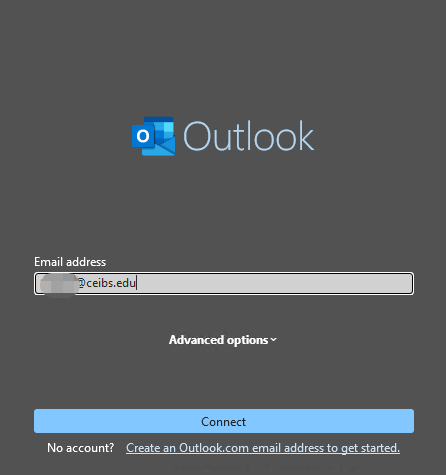
Enter the CEIBS Email address and select Connect.
-
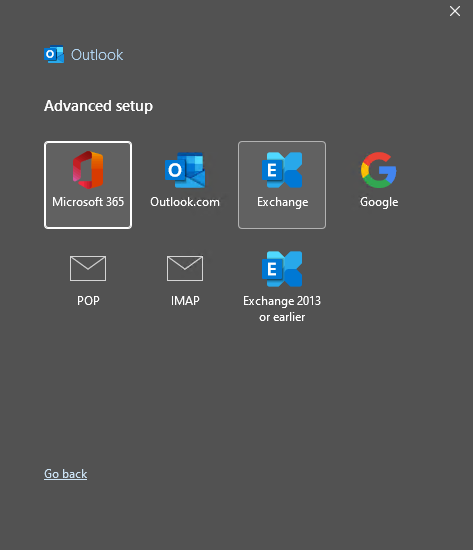
Select Exchange, if prompted, enter your password.
-
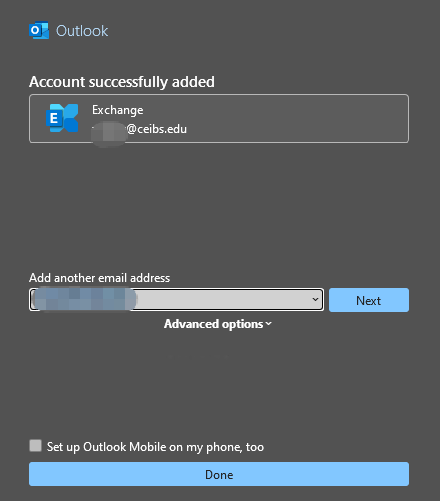
Account successfully added. Uncheck Set up Outlook Mobile on my phone, too, then click Done.
- Setup complete.