
This guide helps staff, faculty, and students connect to the CEIBS-A wireless network on campus.
Applicable to macOS 11/12/13/14/15/26
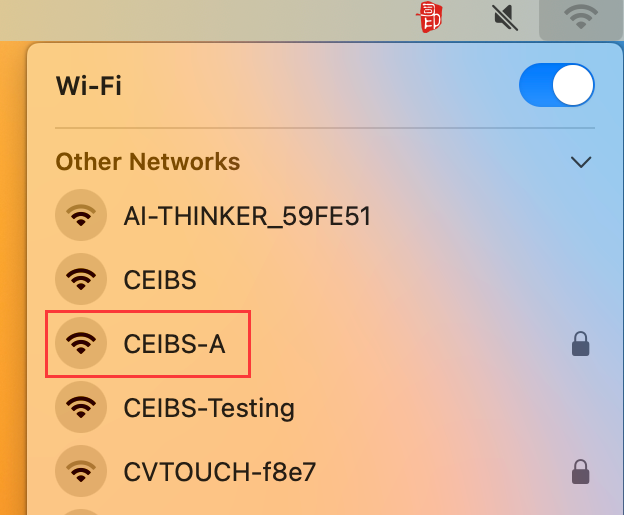
- On your Mac, click the Wi-Fi icon in the menu bar, then choose CEIBS-A. If you don’t see the network you want to join, click Other Networks to display nearby networks.
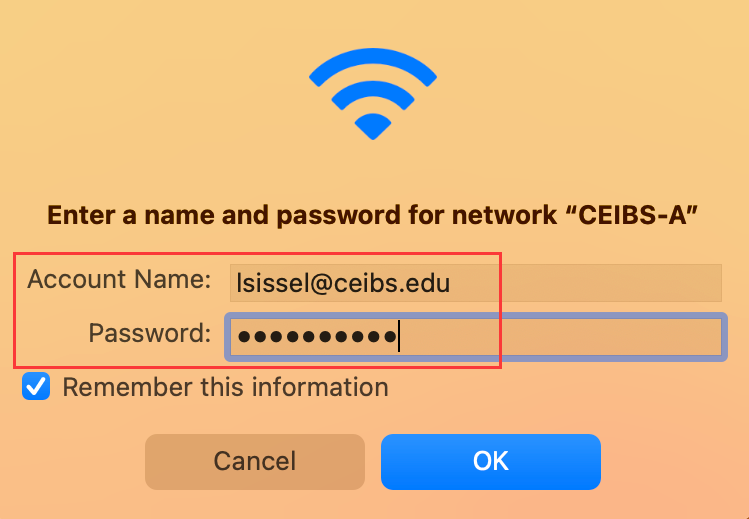
- In the pop-up window, enter your CEIBS email address as the Account Name and enter your password. Check the box for Remember this information, then click OK.
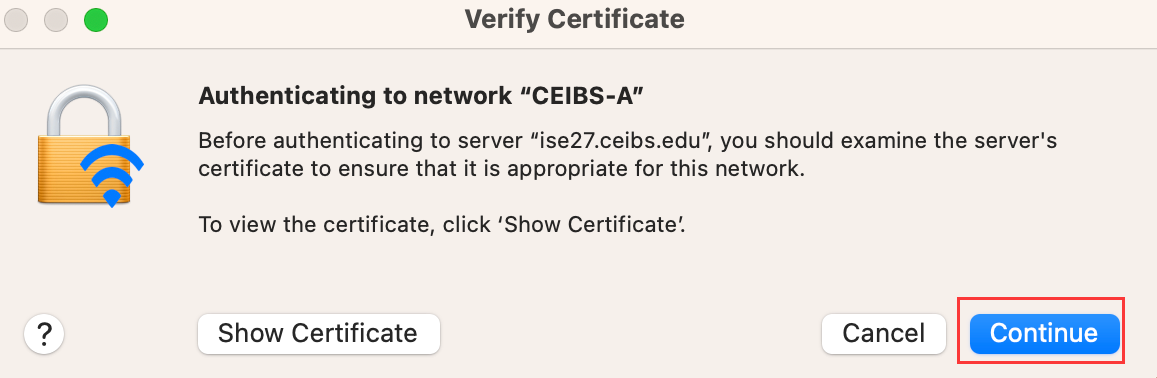
- Click Continue in the pop-up Verify Certificate window.
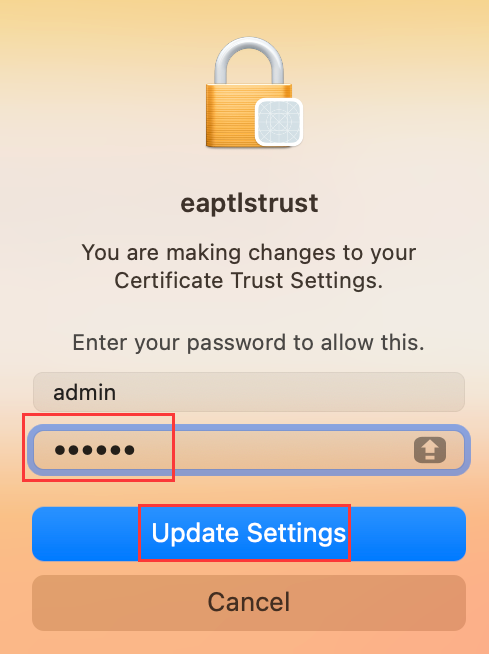
- In the pop-up eaptlstrust identity authentication window, enter the login password for this computer. Then click Update Settings to complete the connection.
- Setup complete.