
This guide helps staff, faculty, and students connect to the CEIBS-WiFi6 wireless network on campus.
Applicable for iOS 12/13/14/15/16/17/18/26
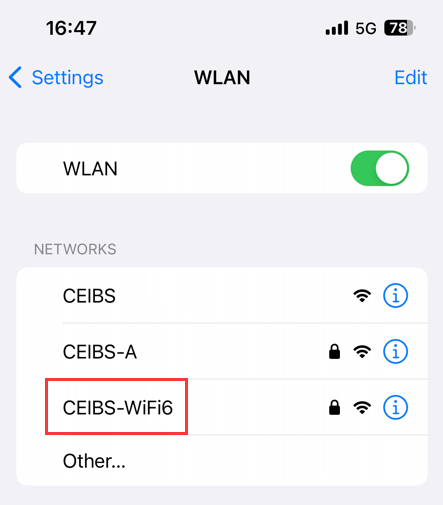
- Go to Settings > WLAN, choose CEIBS-WiFi6.
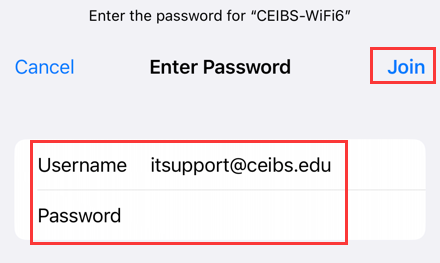
- In the pop-up window, enter your CEIBS account as the Username and enter your password, then tap Join.
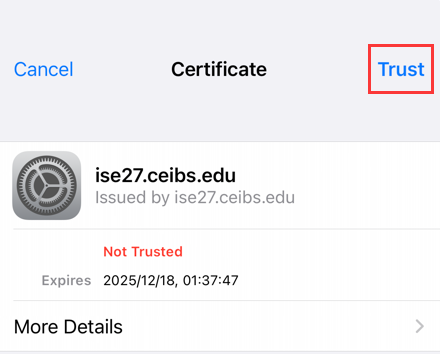
- In the pop-up Certificate window, tap Trust in the upper right corner to complete the process.
- Setup complete.
Note:
It is recommended that everyone switch to the CEIBS-WiFi6 network. If you have previously connected to the CEIBS-A network, please remove the CEIBS-A connection to enjoy the new Wi-Fi 6 experience.
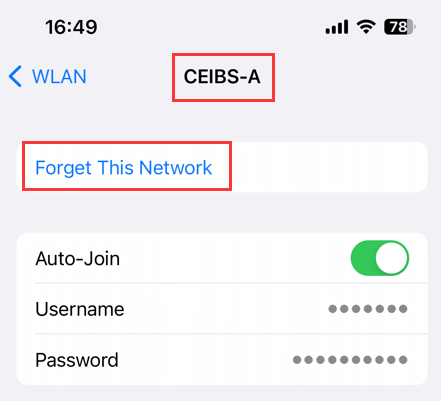
The steps to remove the CEIBS-A wireless connection are as follows:
- Go to Settings > WLAN, then tap the ⓘ icon on the far right of CEIBS-A.
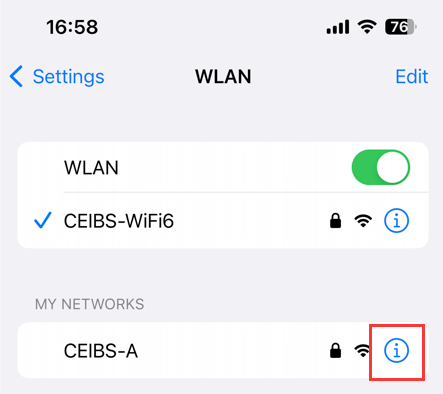
- Tap Forget This Network.
- Setup complete.