
This guide helps staff, faculty, and students learn how to share calendars and open shared calendars.
Set up calendar permissions:
- Open classic Outlook on your Windows computer.
- Click the Calendar icon at the bottom left to switch to Calendar view.
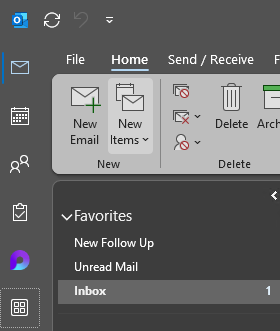
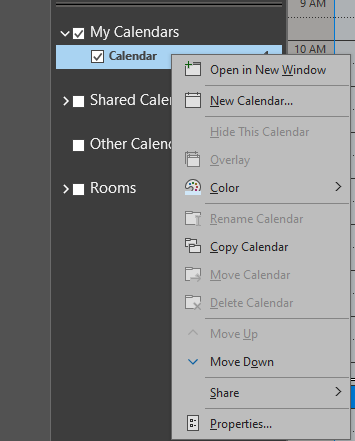
- Right-click your calendar under My Calendars, then select Properties from the menu.
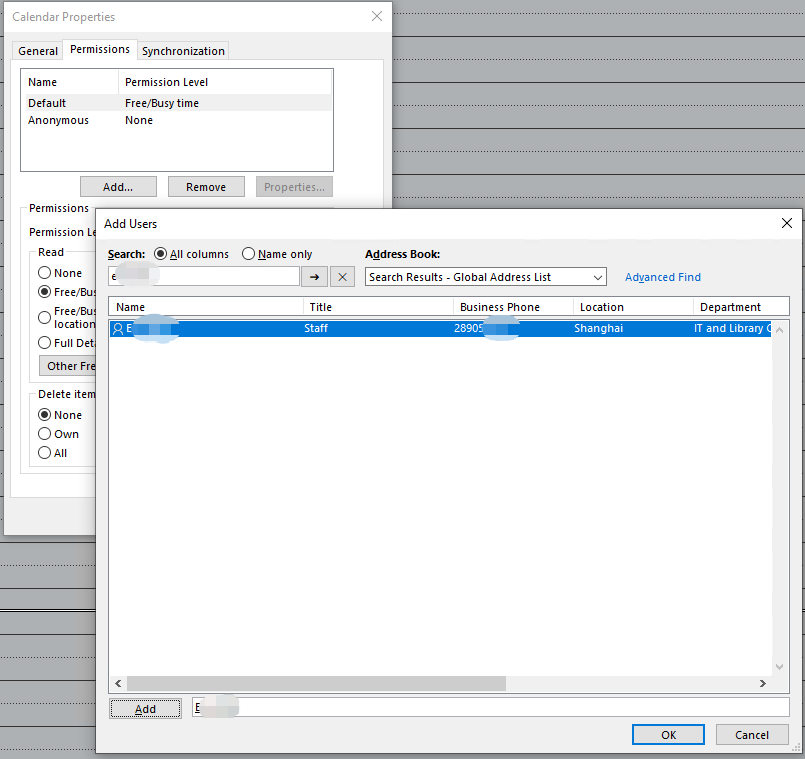
- In the Calendar Properties window, go to the Permissions tab, click Add… to select users you want to share with.
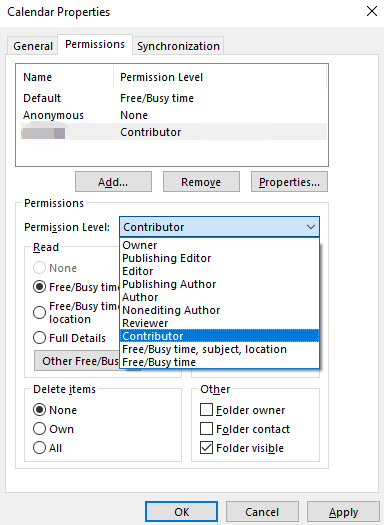
- Choose a permission level (e.g., Reviewer, Editor, Owner) from the dropdown menu, then click Apply and then OK to save the settings.
- Setup Complete.
Add a shared calendar:
- Open classic Outlook.
- Click the Calendar icon at the bottom left.
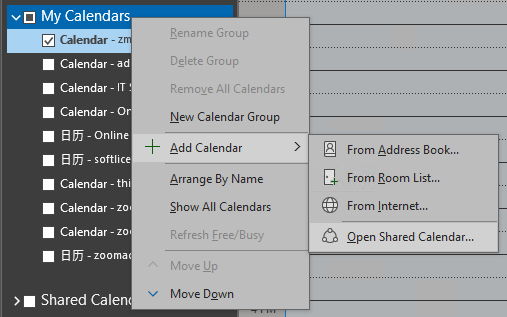
- In the left pane, right-click My Calendars, click Add Calendar, select Open Shared Calendar... from the menu.
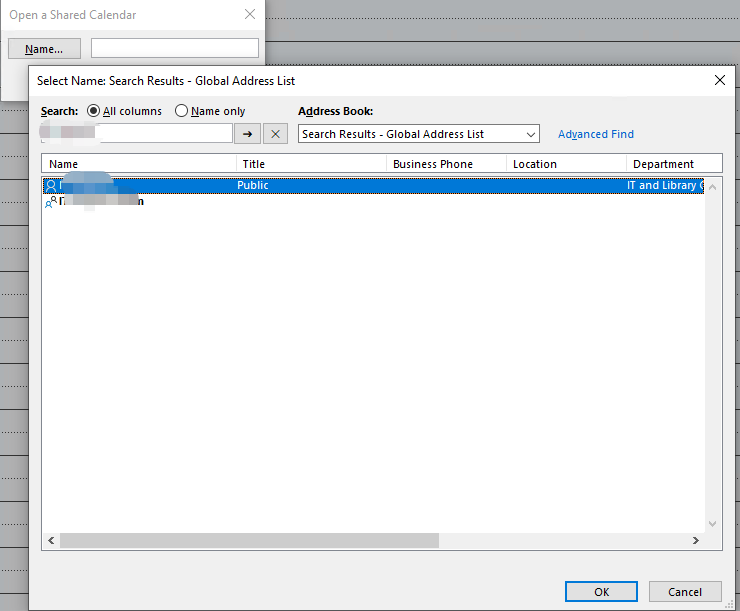
- Enter the name or email address of the person who shared their calendar with you, then click OK.
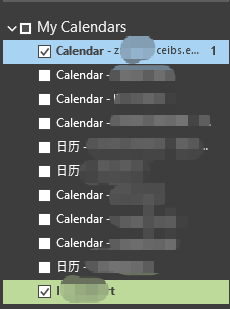
- The shared calendar will now appear in your calendar list.
- End of guide.