
This guide explains how to obtain the physical address (MAC address) on macOS for MBA & GMiM students.
Using System Settings (macOS 13 Ventura and newer)
-
Click the Apple menu in the top-left corner and select System Settings.
-
Select Network from the sidebar.
-
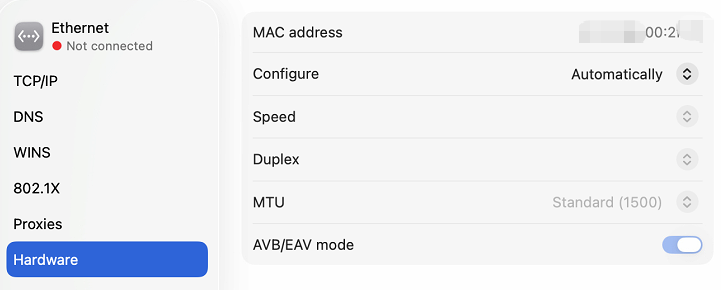
Choose Wi-Fi or Ethernet, depending on the MAC address you need, and click Details.
-
In Private Wi-Fi address option, select Fixed.
-
Locate the Wi-Fi Address.
Using Network Preferences (macOS 12 Monterey and older)
-
Click the Wi-Fi icon in the top menu bar and select Network Preferences.
-
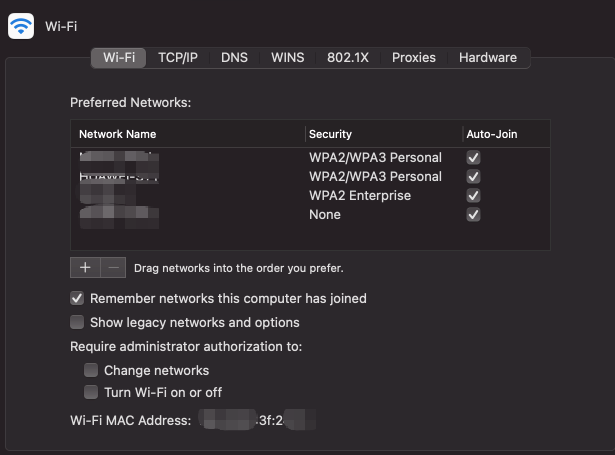
Select Wi-Fi or Ethernet, depending on the MAC address you need, and click Advanced.
-
Find the Wi-Fi MAC Address at the bottom of the window.
*Every student can register two MAC addresses for their devices, which will be used for studying at CEIBS.