
This guide helps staff, faculty and students to use Print Service on the web.
Supported File Type
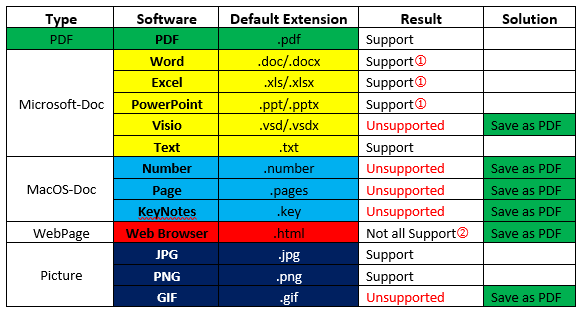
*①Recommend you to save document as pdf file before print, if content contains complex format or font.
*②Text type page is supported better than multimedia type page, so please try to save multimedia type page as pdf file before print.
*Print job in system expires after 24 hours.
How to use WebPrint
Use your web browser to upload and print a document to printers. Now the service is Only available in CEIBS campus network.
- Access https://webprint.ceibs.edu.cn in your browser, and sign in with your CEIBS account and password.
- After successful sign in, you can click to change display language on the top right corner if necessary.
- After successful sign in, you can click to change display language on the top right corner if necessary.
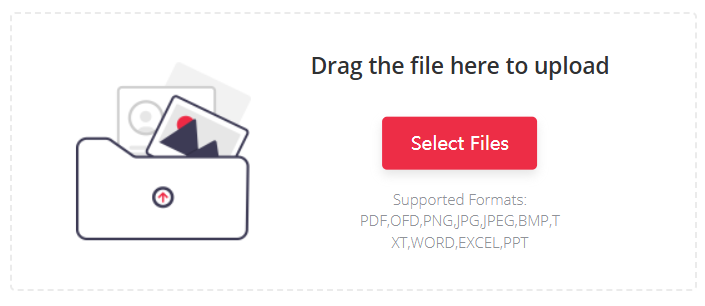
- then click Select Files to upload file you want to print.
- Configure Print Queue.
- In the Color Type column, click the button below to select either Color or Black & White printing.
- In the Duplex column, click the button below to select either Single Side or Double Side printing.
- In the Paper Type column, click the button below to select the paper type.
- In the Copy Count column, click the - or + buttons, or enter a number directly, to set the number of copies.
- In the Range column, enter page numbers in the input box to specify the page range to print.

- Select Print At Once to start print, then you can select My Job List to check print task status.

- Job task will send to printer server, you could login nearby printer(Scan your E-card QR code in you iCampusPlus app) to get your paper.