
This guide helps staff, faculty, and MBA & GMiM students to install and use the public printer.
Before You Start
Before installing the printer, please ensure that:
- Your Mac is connected to the CEIBS network.
- Your CEIBS account is active.
- You have permission to install applications on your Mac.
- Any VPN connection is disconnected before installing.
Important Note: Intel-based app will not work with a future release of macOS (macOS 28). For optimal performance and future compatibility, update the app for Apple Silicon. More details from Apple.
- If you have never installed the CEIBS printer driver, go to Download and install.
- If your Mac with Apple Silicon has already installed the CEIBS printer driver(Intel-based app | Printer name is CEIBS-Printer or CEIBS-Printer_PDF), start with Checking and Removing the old Intel-based driver, then go to Download and install.
Checking and Removing the old Intel-based driver
-
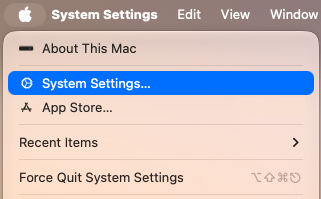
From the Apple menu, choose System Settings.
-
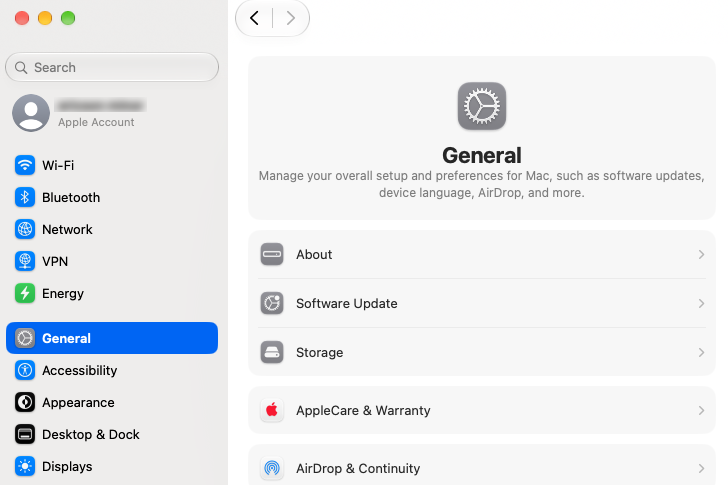
Click General in the sidebar, then click About on the right.
-
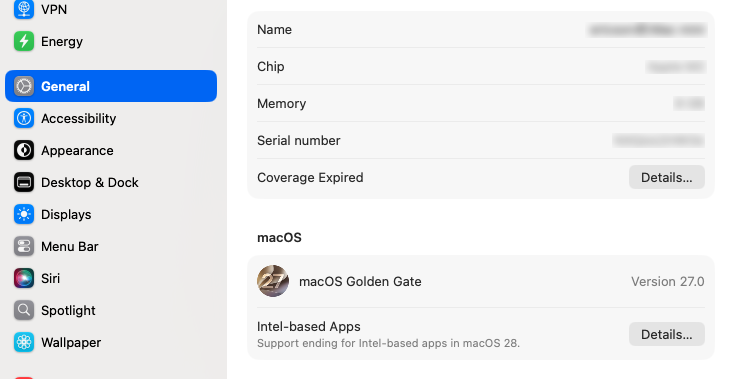
In the macOS section, click the Details button next to Intel-based Apps.
-
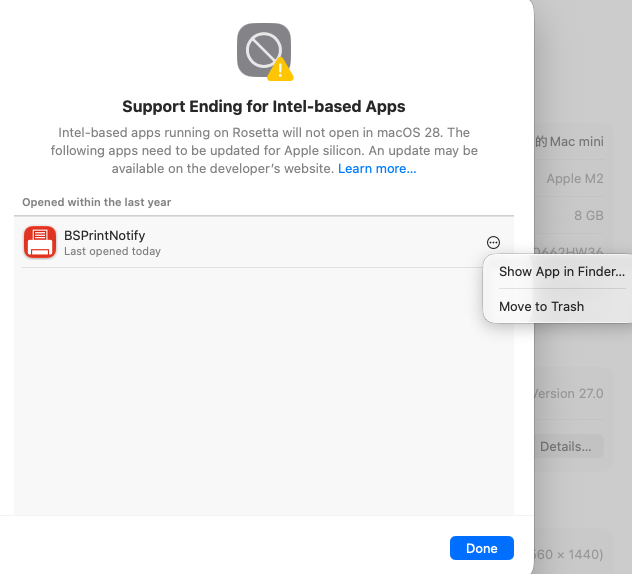
A list of Intel-based apps appears, showing apps that you recently used or that are installed in common locations. Move your pointer over the app’s name, BSPrintNotify, click the , then choose Move to Trash. (If BSPrintNotify is NOT listed here, please proceed to Download and install.)
-
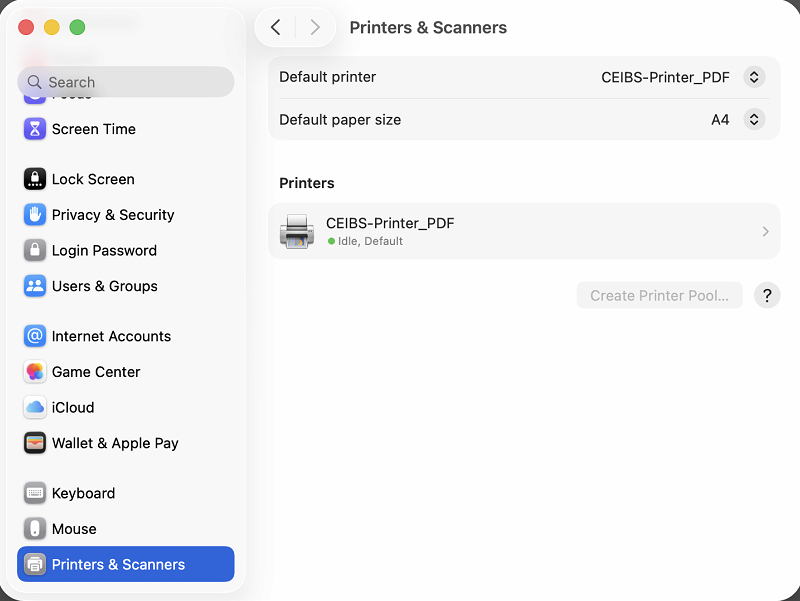
Click Printers & Scanners at the bottom of the sidebar. Click the arrow on the right side of CEIBS-Printer_PDF.
- Click Remove Printer... at the bottom.
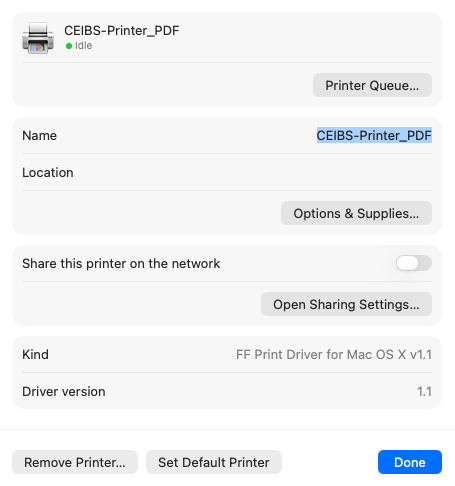
- Remove complete.
Download and install
Download CEIBS-Printer App (Apple Silicon)
Download CEIBS-Printer App (Intel)
Not sure which one to download? Open About This Mac from the Apple menu in the upper-left corner of your screen.
– Shows Chip → Apple silicon
– Shows Processor → Intel
- Download the CEIBS-Printer App.
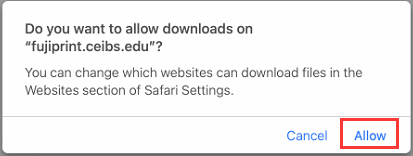
- If the download does not start automatically:
- Safari: Right-click the link and select Download Linked File
- Chrome: Right-click the link and select Save Link As
- Open the downloaded installation package.
Note: Please do not rename the installation package. If you downloaded it before, please remove the old one. - Follow the on-screen instructions to complete the installation.
(If you see the error message below, make sure you are connected to the CEIBS campus network without a VPN connection.)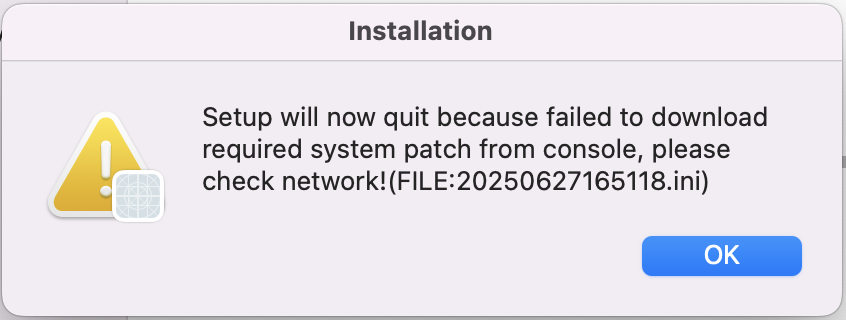
Setup Public printer
-
Verify the Installation
After the installation is completed:
-
-
- Open System Settings.
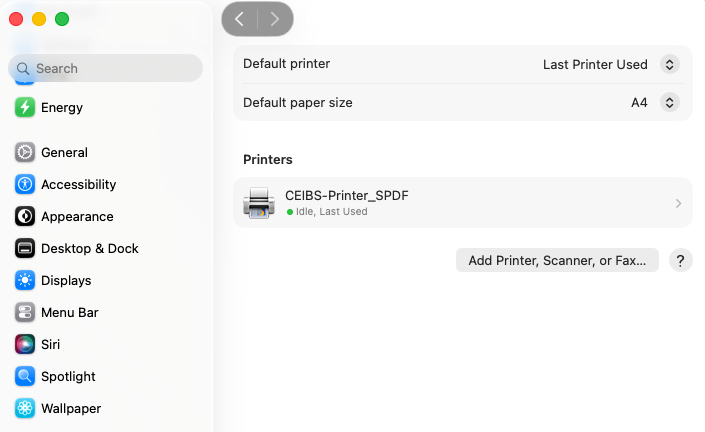
- Select Printers & Scanners.
- Confirm that CEIBS-Printer_SPDF appears in the printer list. (The name of the Intel driver is: CEIBS-Printer_PDF)
-
The printer will be automatically configured as your default printer.
If the printer does not appear, restart your Mac and check again.
-
-
Configure Printing Options
When printing a document:
-
- Enable Duplex (Double-Sided) Printing
-
-
-
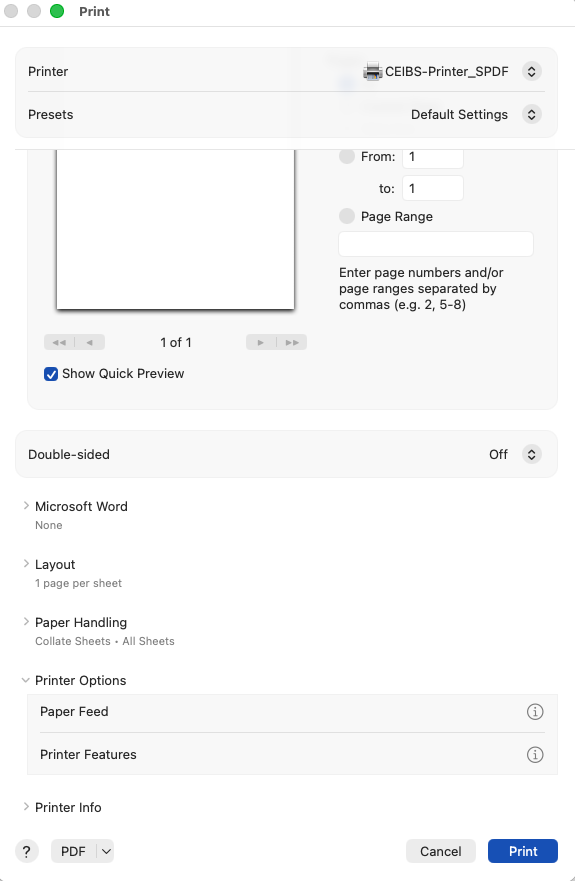
- Open the document.
- Select File → Print.
- Enable Two-Sided or Duplex Printing if double-sided printing is required.
-
-
-
- Change Color Settings
-
-
-
- In the Print dialog, select Features under Printer Options.
- Locate Output Color.
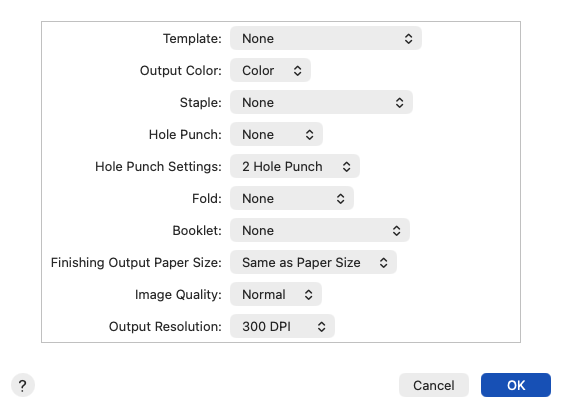
- Choose:
- Black & White
- Color
-
-
Setup complete.
Print Your First Document
- The first time you print after installing the CEIBS-Printer App, you will be prompted to enter your CEIBS credentials.
Sign-in Format
Username
✅ Correct: lsissel
❌ Incorrect:
Password
Use your current CEIBS account password.
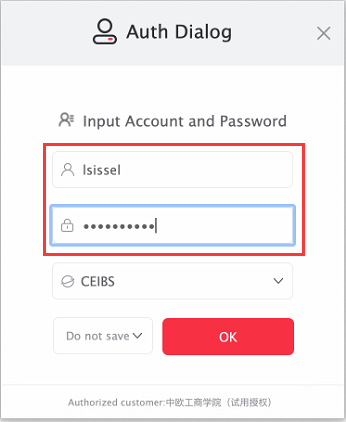
You may choose how long your credentials will be stored on your Mac.
Useful Features
E-Card Login
You can sign in directly at the printer by scanning the QR code using the E-Card in the iCampusPlus app.
Badge Card Registration
You can register your student or staff card for printer authentication.
Please follow the printed guide Badge Card Registration located beside the printer.
Follow Me Printing
Follow Me Printing allows you to:
-
-
-
- Print from any device connected to CEIBS printing services.
- Release documents at any available public printer.
- Keep print jobs secure until released.
-
-
For more information, please refer to the printed instructions beside the printer or the All Services on Printer guide.
Important Notes
- Disconnect any VPN connection before printing.
- After changing your CEIBS password, re-enter your credentials when prompted.
- Print jobs remain securely queued until released at a printer.
- If printing fails, restart the application and verify your network connection.
- Print jobs sent to public printers will be cleared within 24 hours if not printed promptly.
For MBA & GMiM Students
- CEIBS provides a public printing service for MBA & GMiM students using 7 all-in-one printers.
- Students are provided with an initial complimentary black-and-white print quota. Color printing is charged at a standard rate.
- For more details, please refer to:
IT Resources and Services Quick Guide for MBA Students
IT Resources and Services Quick Guide for GMiM Students
Troubleshooting
Printer Not Found
-
- Verify that the CEIBS-Printer App has been installed successfully.
- Check System Settings → Printers & Scanners.
- Restart your Mac if necessary.
Authentication Failed
-
- Confirm that you are using your CEIBS username without @ceibs.edu.
- Verify that your password is correct.
- Re-enter your credentials if you recently changed your CEIBS password.
Print Job Does Not Appear
-
- Ensure VPN is disconnected.
- Verify network connectivity.
- Resubmit the print job if necessary.