
CEIBS provides email services for faculty, staff, and students, which you can set up in Outlook on your mobile devices.
Download and install
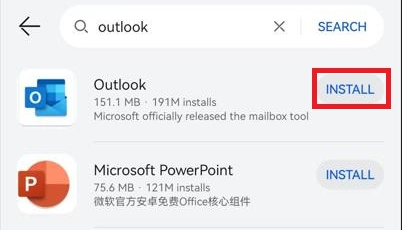
Search for Outlook in the mobile app store to download and install it. If it is not available in the app store, you may also download it from the official website. Download link
Set up CEIBS Email
- Open the Outlook for Android app on your Android device.
-
Set up Outlook for Android for the first time.
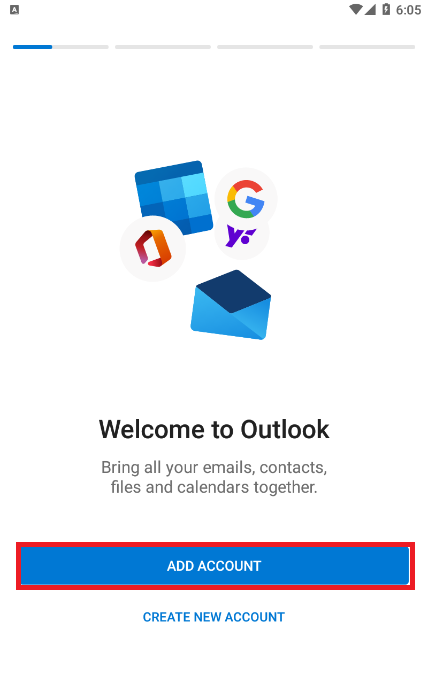
- Select Add Account.
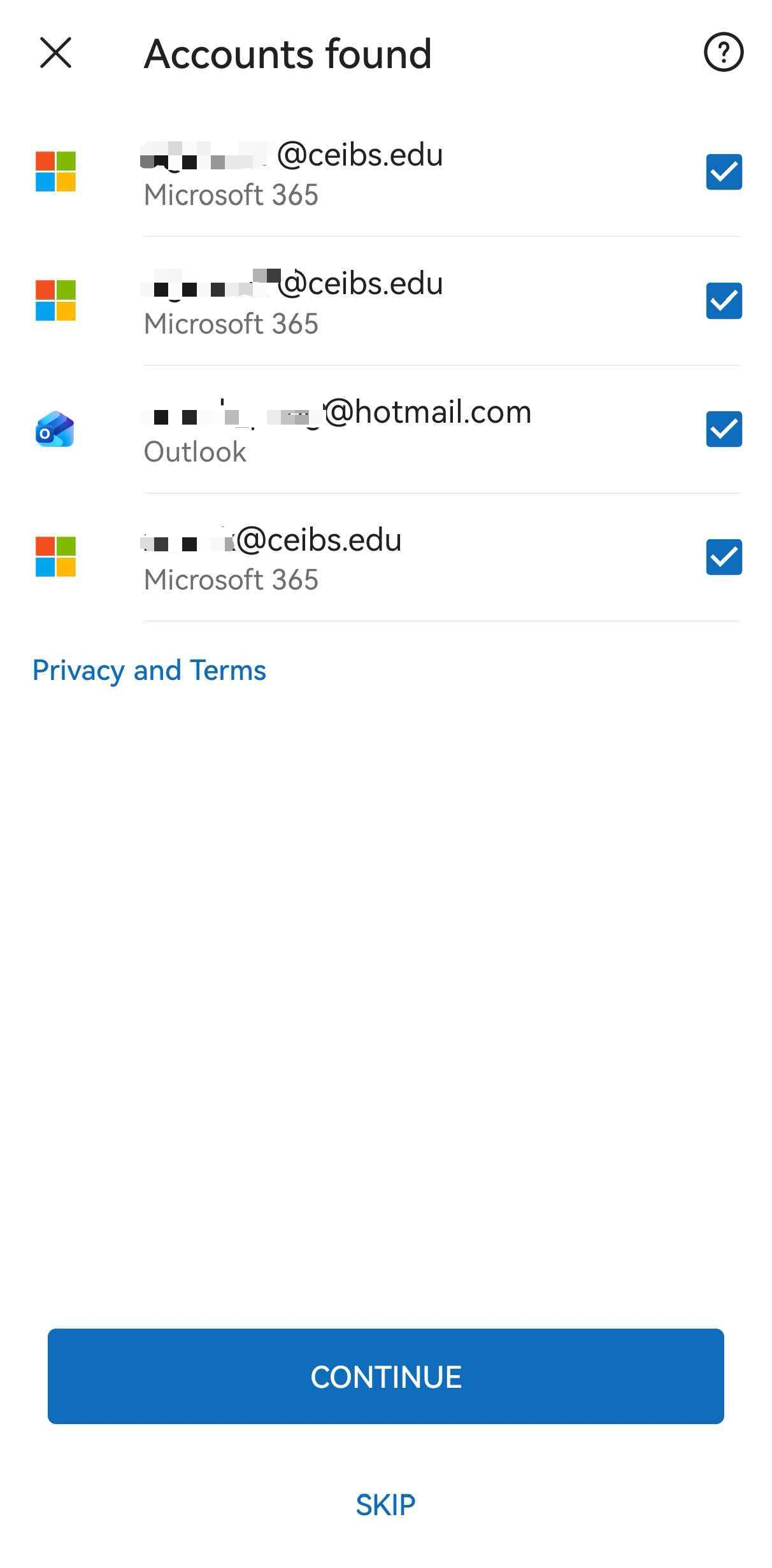
- Outlook may detect and pre-select your email account; tap Skip this account. (Please go to Step 2, enter the email address)
- Select Add Account.
-
Set up another email account in Outlook for Android.
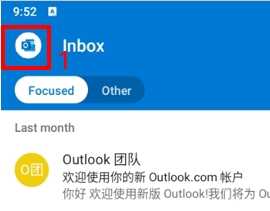
- Tap the circular Outlook icon in the top-left corner.
- Tap the circular ➕ icon and select Add Account at the bottom.
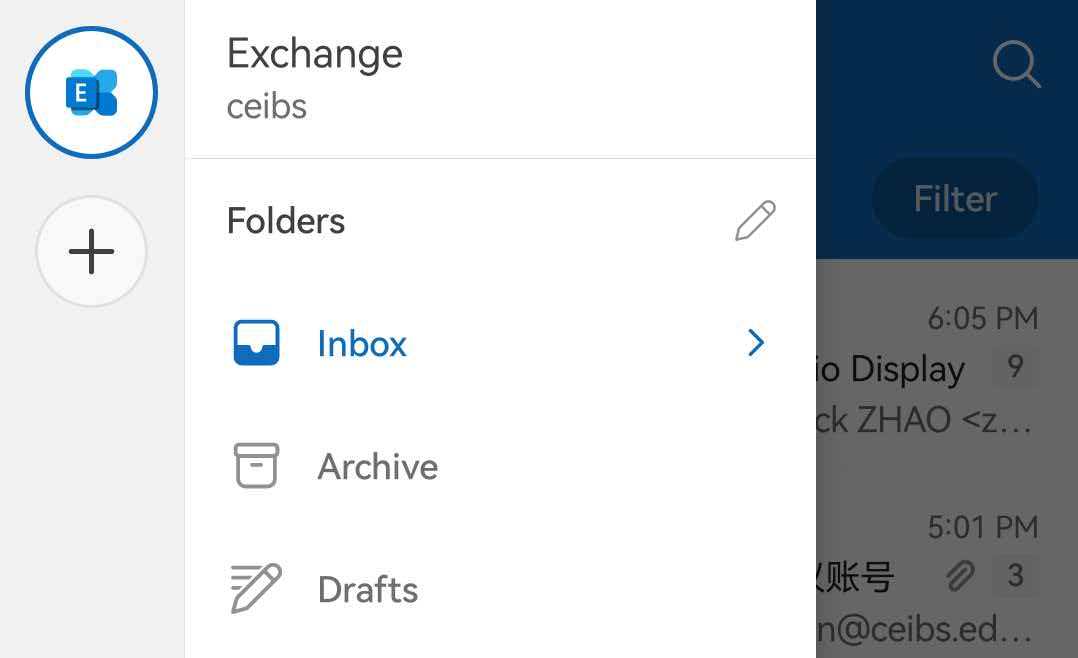
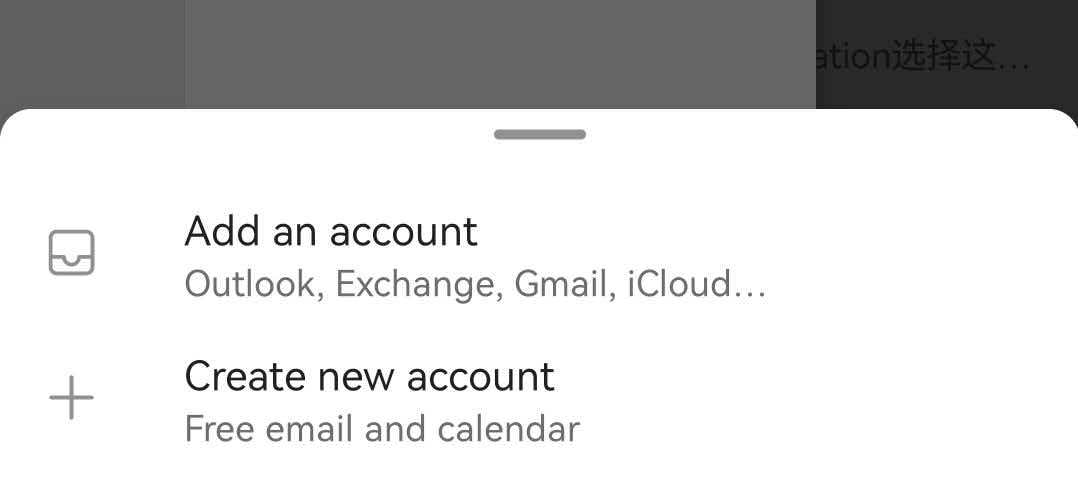
- Tap the circular Outlook icon in the top-left corner.
-
- Enter the CEIBS Email address, then tap continue.
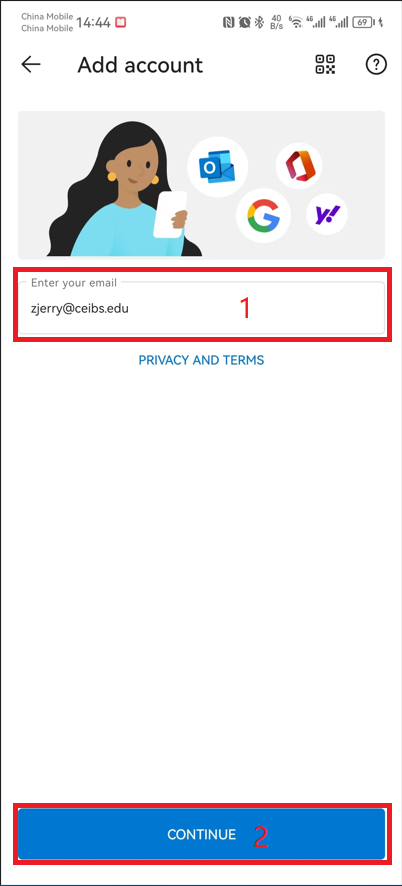
-
Turn on the Advanced settings toggle in the bottom-right corner.
-
Enter Email Password.
-
Enter Descriptions as CEIBS.
-
Check and ensure that the server address is
webmail.ceibs.edu. -
Leave the Domain field blank.
-
In the Username field, enter your CEIBS email address.
-
Finally, tap the ✔ in the top-right corner.
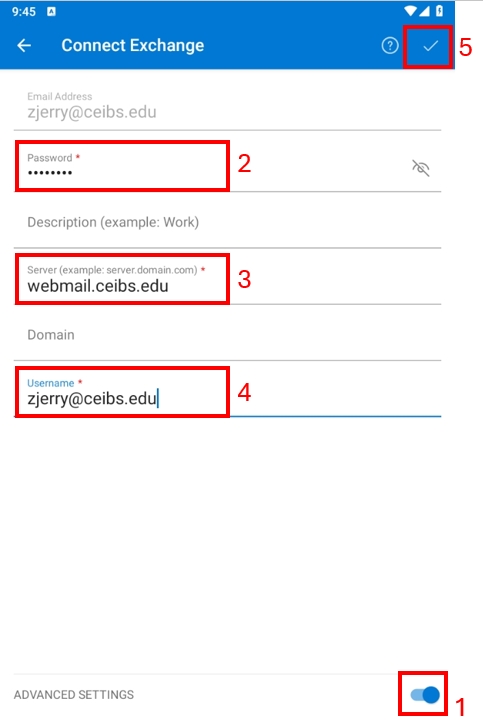
-
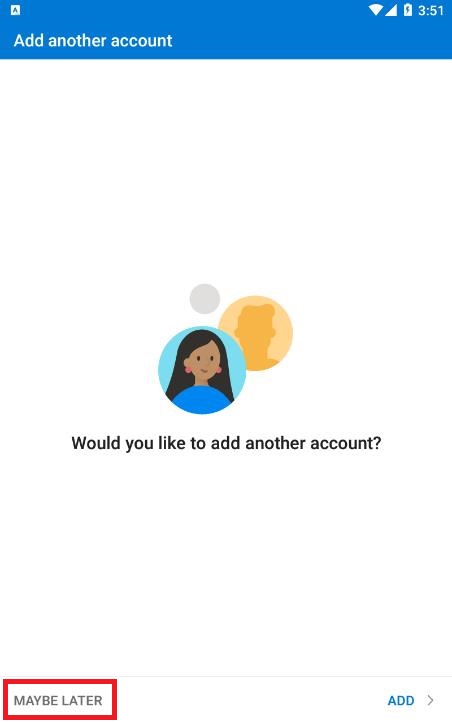
- After successful verification, you will be prompted to add another account; select MAYBE LATER to complete.
- Setup complete.