
CEIBS provides email services for faculty, staff, and students. You can set it up on the mail client of your mobile device.
-
Add your Exchange account
- Tap Mail > Exchange.
- If you're adding another account, tap the settings in the top right corner and select Add Account.
-
Enter your email address
Enter your CEIBS email address in both the email address and username fields, and then enter your password. -
Connect to your Exchange Server
-
Tap Manual Setup.
-
Enter webmail.ceibs.edu in the server field, leave the domain blank, and tap the checkmark ✔ icon in the top right corner.
-
In the pop-up Remote security administration window, tap OK.
-
-
Sync your content
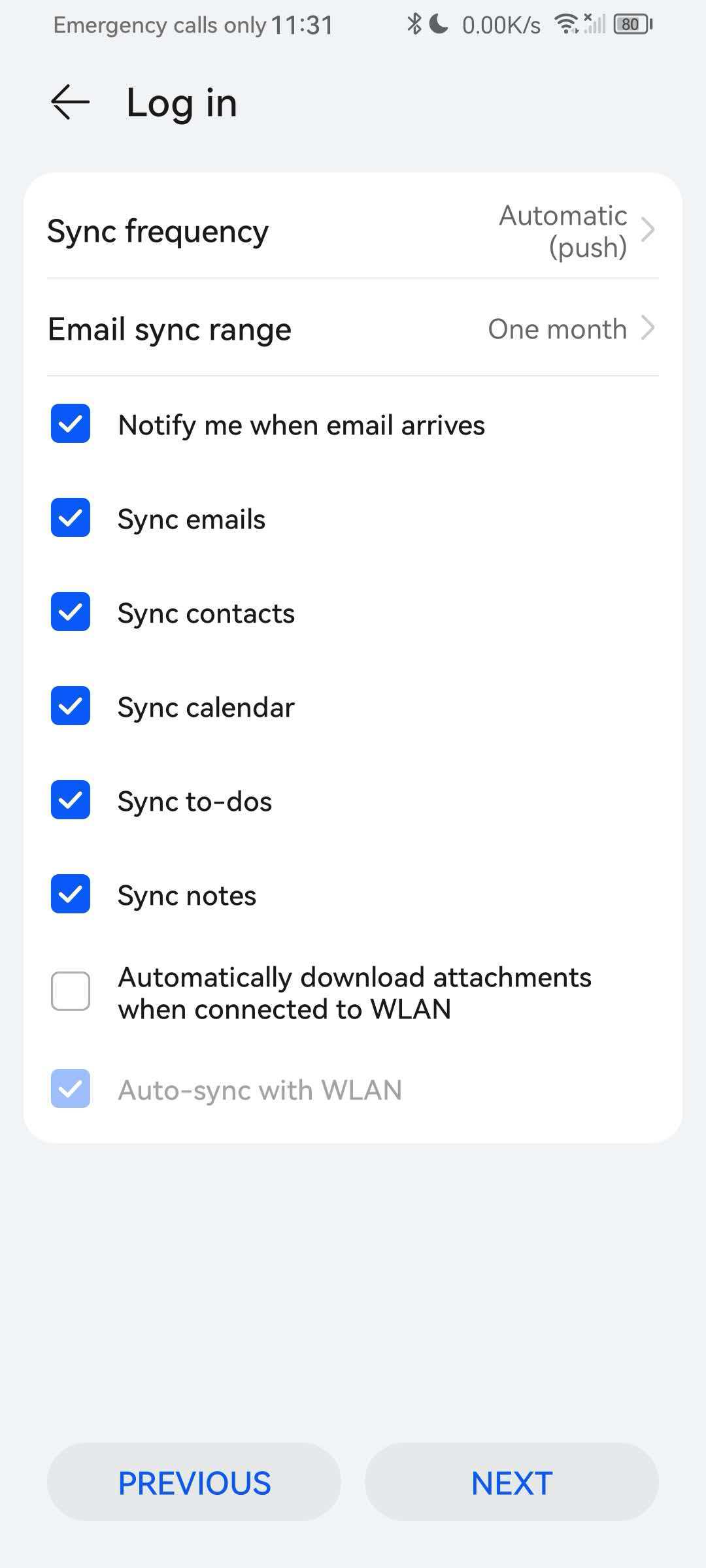
- You can set the sync frequency and sync range.
- You can sync Emails, Contacts, Calendar, To-dos, and Notes. You can choose according to your own needs.
- When you're finished, tap Next.
-
Security features
- In the pop-up window asking whether to activate device administrator, tap Activate to complete the setup.
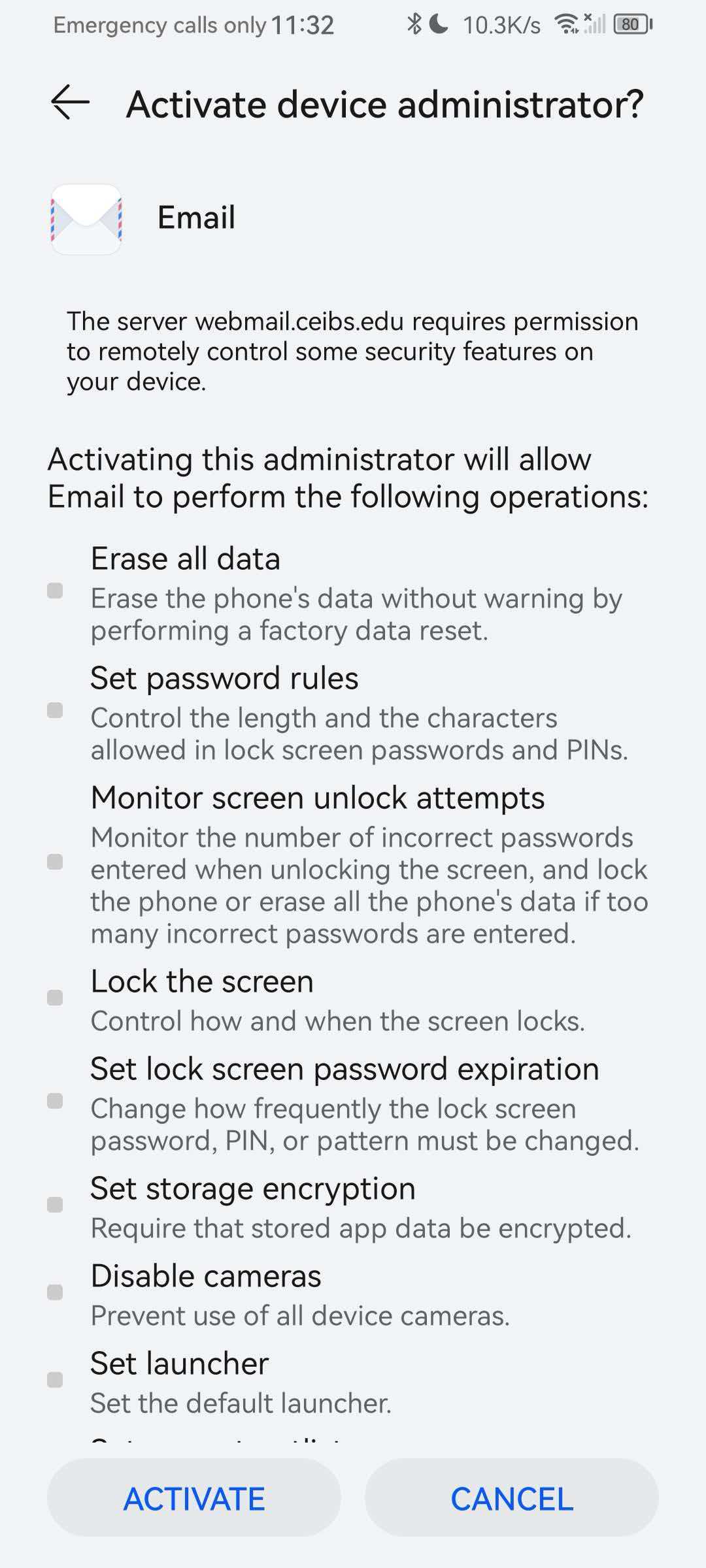
- In the pop-up window asking whether to activate device administrator, tap Activate to complete the setup.
- Setup complete.