
CEIBS provides email services for alumni. You can set it up on Outlook for desktop devices.
If you do not have Microsoft Outlook installed on your computer, you may use Foxmail as an alternative.
Foxmail is a free, lightweight, and efficient desktop email client developed by Tencent.
Download and install
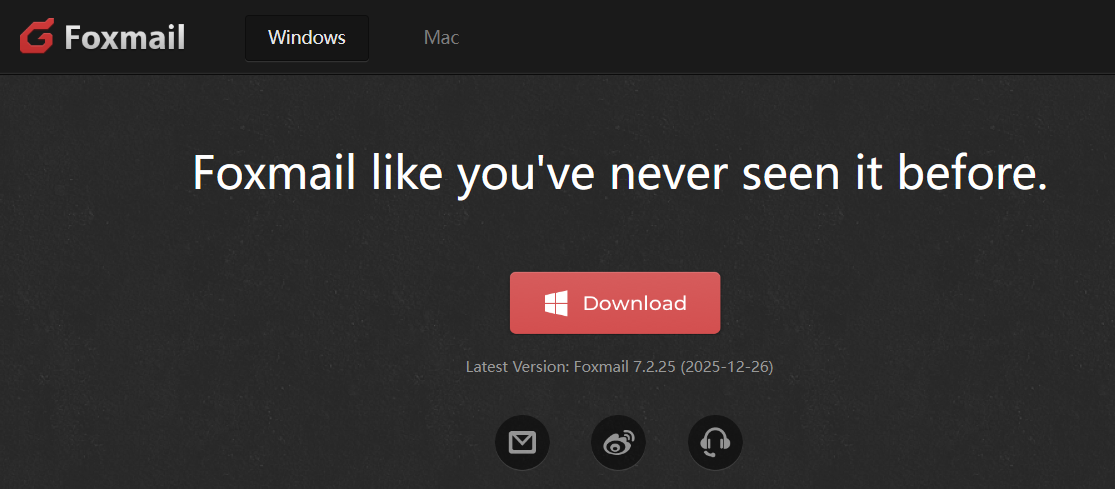
- Access the Download Link, click Download, and wait for the download to complete.
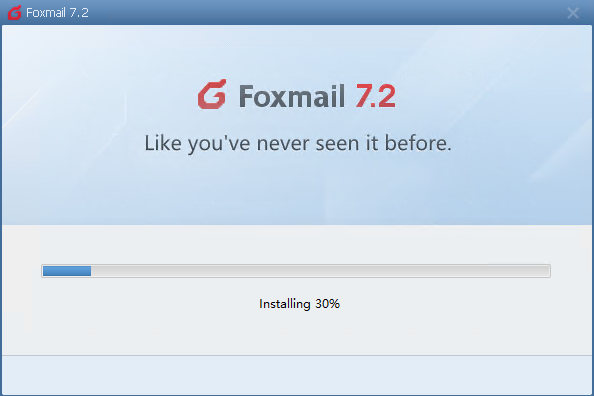
- Open the installer and follow the instructions to install step by step.
- End of guide.
Set up CEIBS Alumni Email
- Open the Foxmail client.
- For first-time setup of Foxmail, go directly to Step 2 and select Other Mail.
- To set up an additional email account in Foxmail:
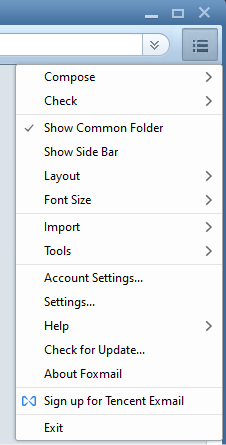
- Click the menu icon in the top-right corner and select Account Settings.
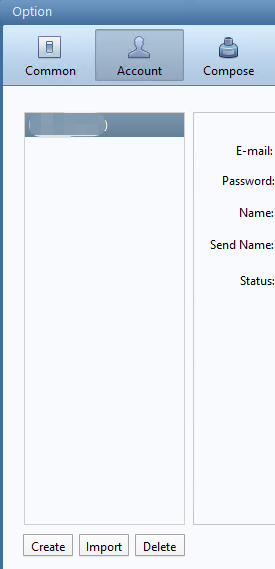
- Under the Accounts section, click Create in the bottom-left corner.
- Click the menu icon in the top-right corner and select Account Settings.
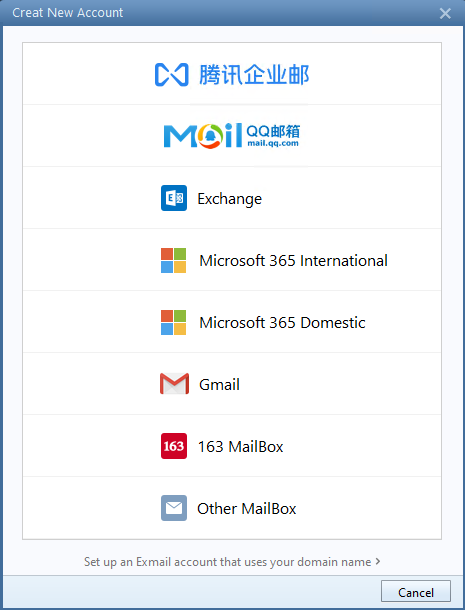
- Select Other Mailbox.
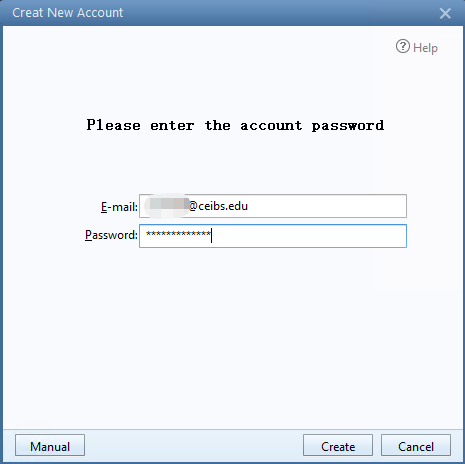
- Enter your CEIBS email address and Password, then click Manual.
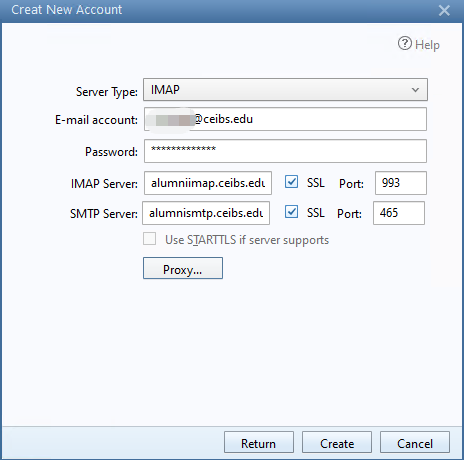
- Enter the server information:
- In the Server Type drop-down menu, select IMAP;
- If you did not enter your email in the previous step, enter your CEIBS email address in the E-mail account field;
- Enter your Password;
- Enter the IMAP Server:
alumniimap.ceibs.edu; - Check SSL and ensure the Port is
993; - Enter the SMTP Server:
alumnismtp.ceibs.edu; - Check SSL and ensure the Port is
465; - Click Create.
- Click Finish.
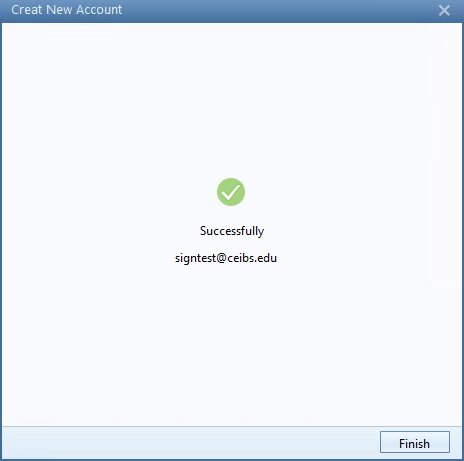
- Setup complete.