
CEIBS provides email services for alumni. You can set it up in Mail app for desktop devices.
If you do not have Microsoft Outlook installed on your computer, you may use Mail app as an alternative.
Mail is the built-in email application in macOS.
Set up CEIBS Alumni Email
- Open the Mail app from the Dock.
- If you are using the Mail app for the first time, please go directly to Step 2.
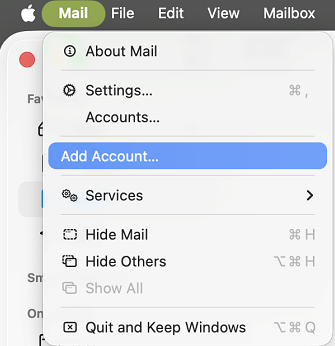
- If you have used the Mail app before, go to the top menu bar and select Mail > Add Account.
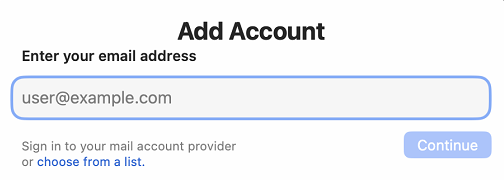
- In the Add Account window, select Choose from the list.
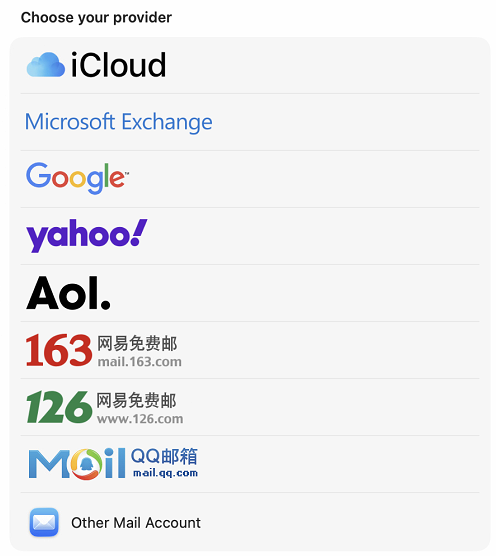
- In the Select a provider list, select Other Mail Account.
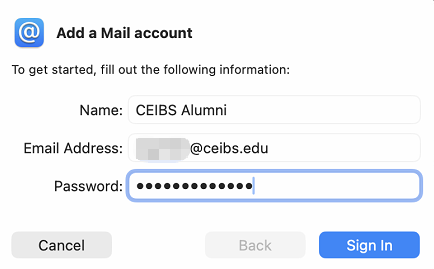
- Enter your Name (e.g., CEIBS Alumni), enter your CEIBS Alumni email address in the Email Address field, enter your Password, then click Sign In.
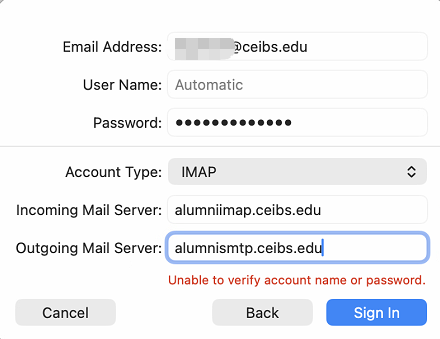
- Check and enter the account and server information:
- Verify that the previously entered Email Address is your CEIBS Alumni email address,
- From the Account Type dropdown menu, select IMAP,
- In the Incoming Mail Server field, enter
alumniimap.ceibs.edu, - In the Outgoing Mail Server field, enter
alumnismtp.ceibs.edu, - Click Sign In.
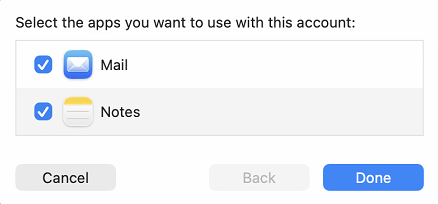
- After successful verification, you will be prompted to Select the apps you want to use with this account. You may check Mail and Notes. You can choose according to needs, then click Done.
- Setup is complete.