
This guide helps staff, faculty, and MBA & GMiM students to install and use the public printer on Windows with Snapdragon CPU.
Download Tools
- Click the link: CEIBS-Printer .Choose CEIBS_Printer_for_Snapdragon_CPU-EN download it.
Note: Access to this link requires verification and login with your CEIBS account.
Install Printer
To ensure the proper execution of the program, please temporarily disable your security software (e.g., 360, Huorong) before using this tool .
- Open the CEIBS_Printer_for_Snapdragon_CPU-EN.
- Wait for the program to run, and enter the operation number (0~2) as prompted in the pop-up window.
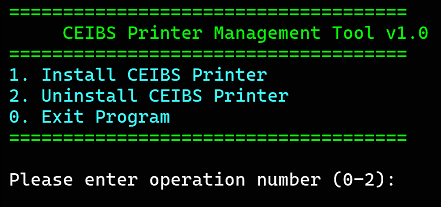
- Enter 1 and press the Enter key.
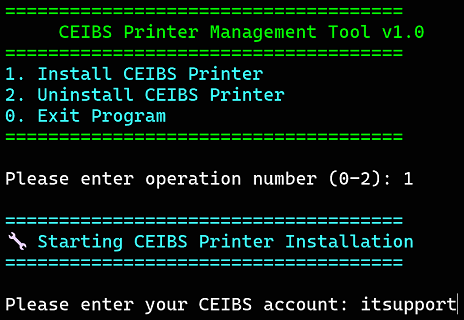
- Starting CEIBS Printer Installation,please enter your CEIBS account (e.g., itsupport, which refers to the part preceding the @ symbol in your CEIBS email address
This email address is being protected from spambots. You need JavaScript enabled to view it. ) and press the Enter key. - Wait for the printer installation to complete.
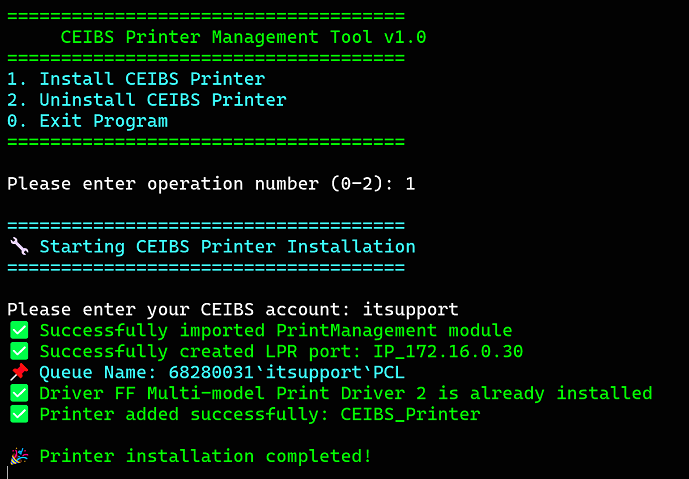
- Try printing a document using the CEIBS Printer.
Next, go to a nearby public printer and scan your E‑card via the CEIBS iCampusPlus app on your phone.
Once your card is successfully verified, your recent print jobs will be displayed.
Select the jobs you want and click Print to complete the process.
You have now successfully installed the CEIBS Printer. Proceed to Step 10. - If you entered the wrong CEIBS account during the printer installation, you will need to Uninstall CEIBS Printer.
Then reinstall the CEIBS Printer. - Enter 2 and press the Enter key.
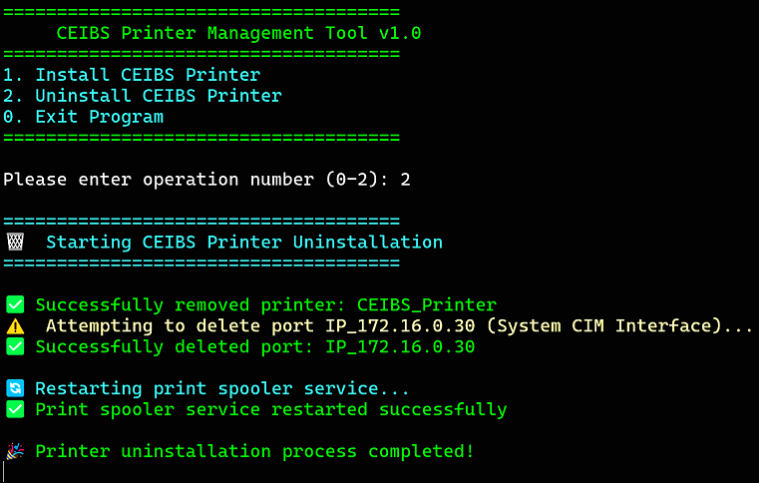
- After the uninstallation succeeds, enter operation number 1 to reinstall the CEIBS Printer.
- After the installation is complete, you can enter operation number 0 to exit the CEIBS Printer Manager Tool. The window will close automatically after 5 seconds.
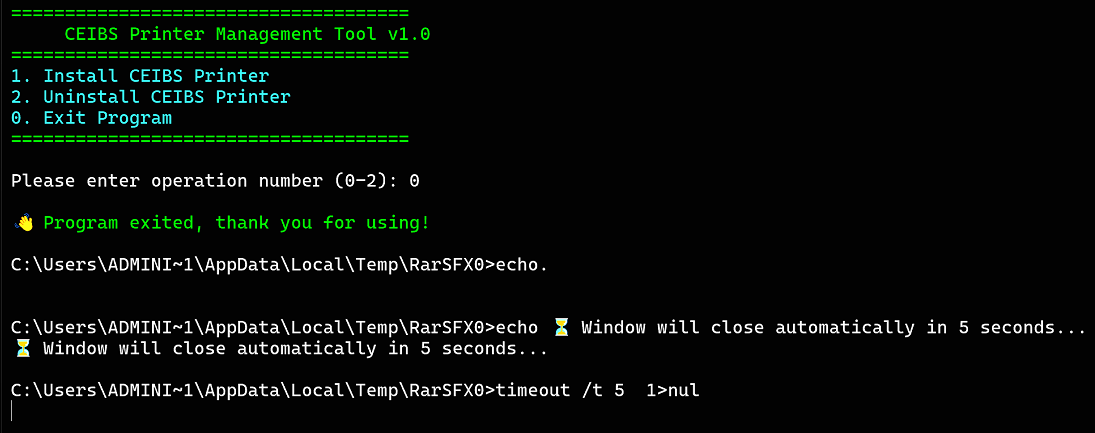
- CEIBS Printer installation completed.
Setup Public printer
- After installation, the default settings are 1 Sided Print and Black & White for Output Color.
- If you want to use 2-sided printing or color printing, open the Windows system Settings > Devices > Printers & scanners.
- Find CEIBS-Printer, then click Manage.
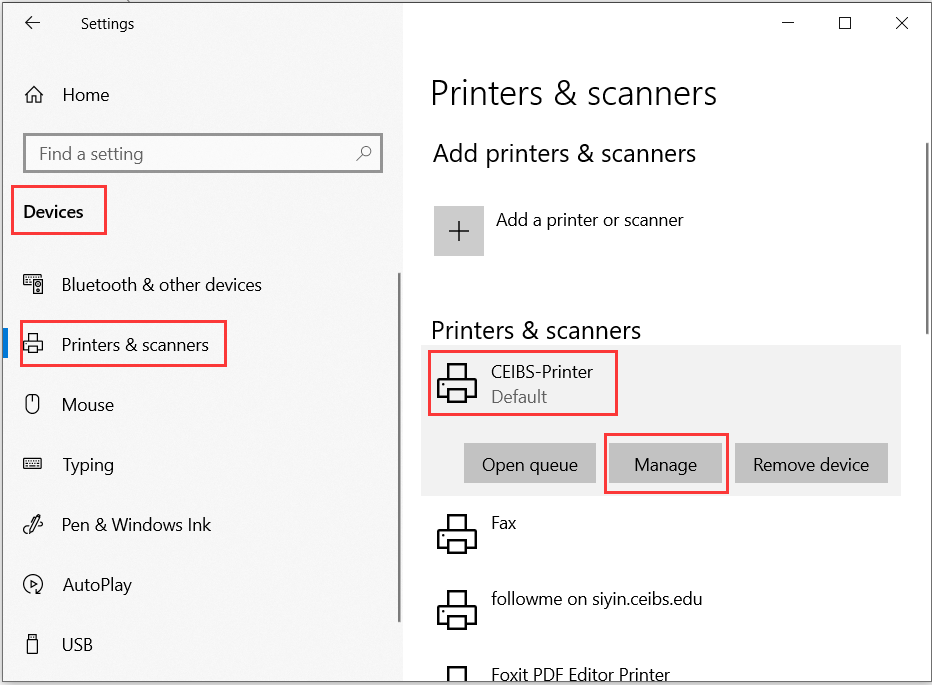
- Open Printing preferences.
- To enable double-sided printing, set 2 Sided Print in the printing preferences.
- To print in color, change the Output Color setting.
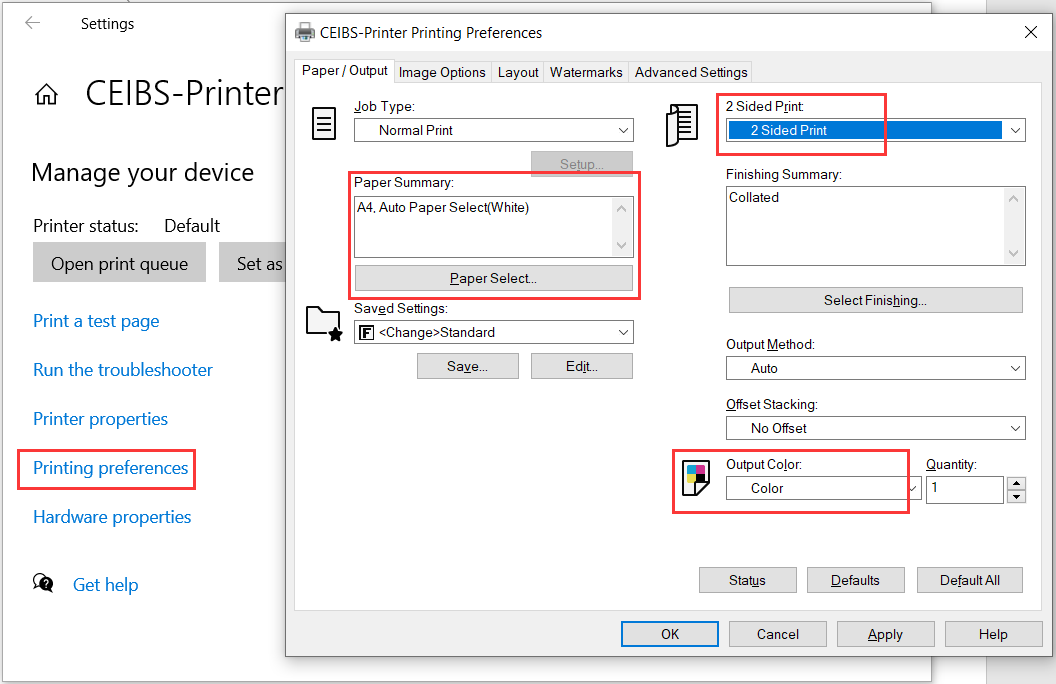
- Setup complete.