This guide will help staff and faculty download, install, and sign in to Foxit PDF Editor.
Note: If you don't have Foxit PDF Editor installed, please download the installation package first. Then contact IT Helpdesk(Ext. 5254) or Eric MIN(Ext. 5579) to help you install.
Download and install
Download from the official website.


Sign in with CEIBS Account
- Find the Foxit PDF Editor icon on the desktop or search for Foxit, and open it.

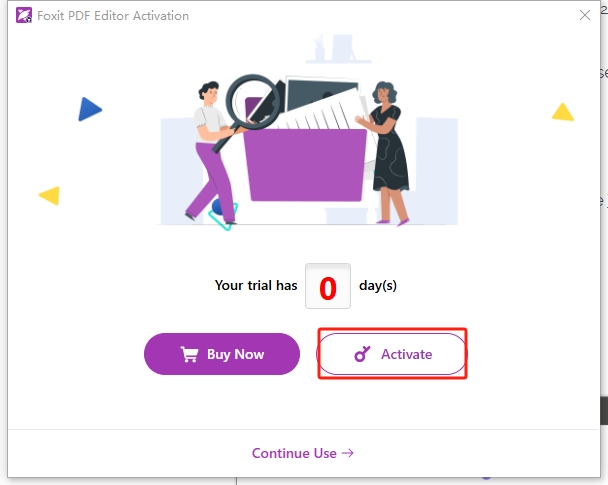
- If a Foxit PDF Editor Activation window appears, please click Activate.
- Click Sign In under the Subscription area.
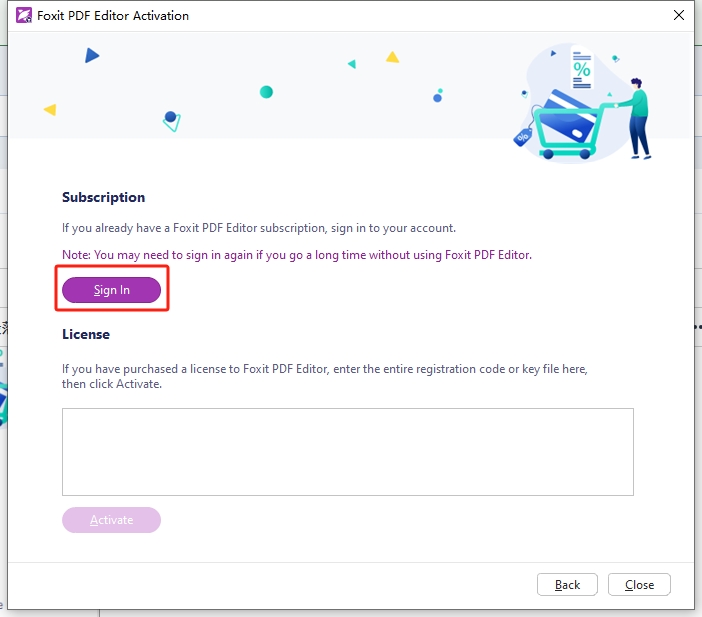
- Click Sign In under the Subscription area.
- If a Foxit PDF Editor Activation window does not appear, please find the upper-right corner of the app window and click the Sign in icon.

- If a Foxit PDF Editor Activation window appears, please click Activate.
- In the Sign in window, click SSO Login.
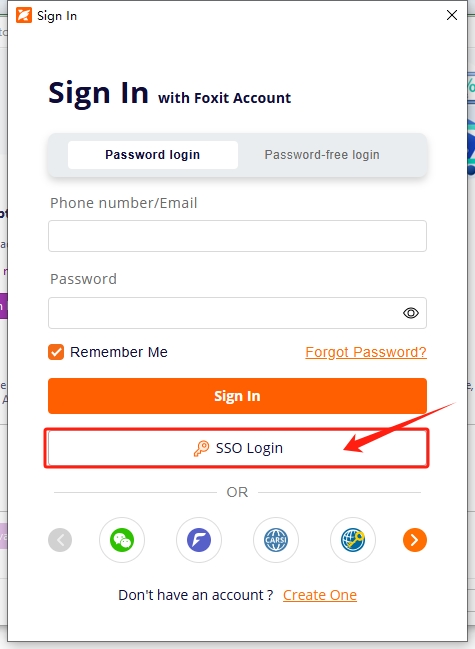
- Enter your CEIBS email address and click Sign in.
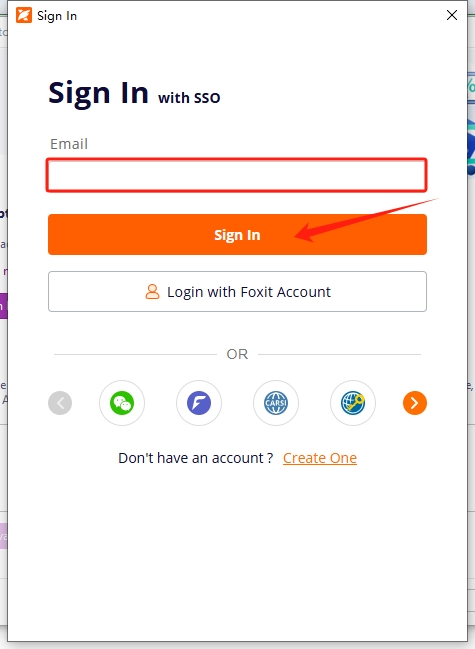
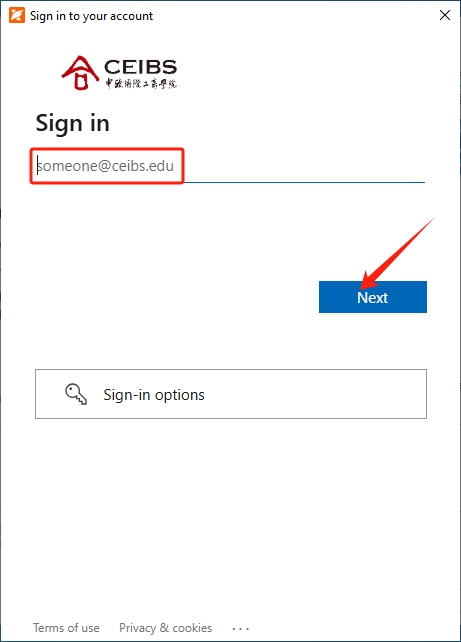
- Enter your CEIBS email address again in the Microsoft sign-in page and click Next.
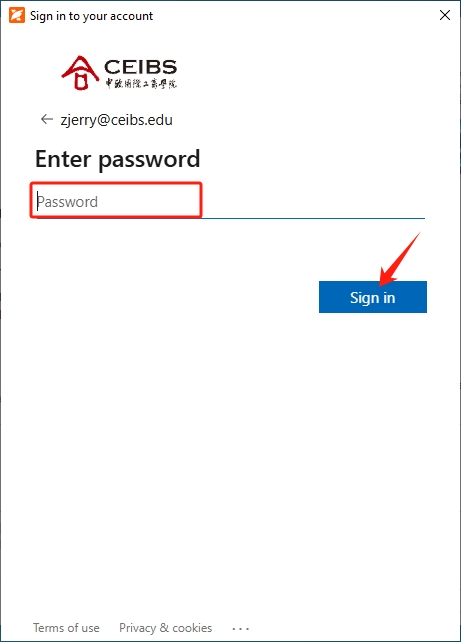
- Enter your password and click Sign in.
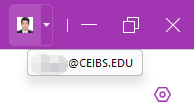
- Check the upper-right corner of the app window to ensure you have successfully signed in.