
This guide will help you install the Microsoft Authenticator and set up multi-factor authentication(MFA).
Download and Install Microsoft Authenticator
- Multi-factor authentication is an effective way to protect your account from being stolen, and Microsoft Authenticator is a straightforward way to implement multi-factor authentication. First, please download it from the App Store or scan the QR code below to install Microsoft Authenticator on your iPhone.
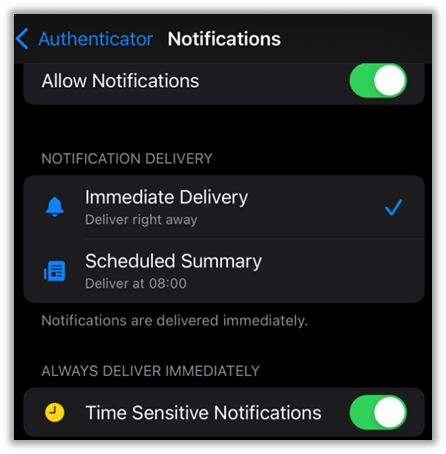
- After installing Microsoft Authenticator, ensure that push notifications for Microsoft Authenticator are enabled. How to: Settings > Notifications > Authenticator > Enable Allow Notifications > Immediate Delivery

Set up multi-factor authentication - Microsoft Authenticator method
- Access this site https://myaccount.microsoft.com/ in a computer browser and sign in with your CEIBS account and password.
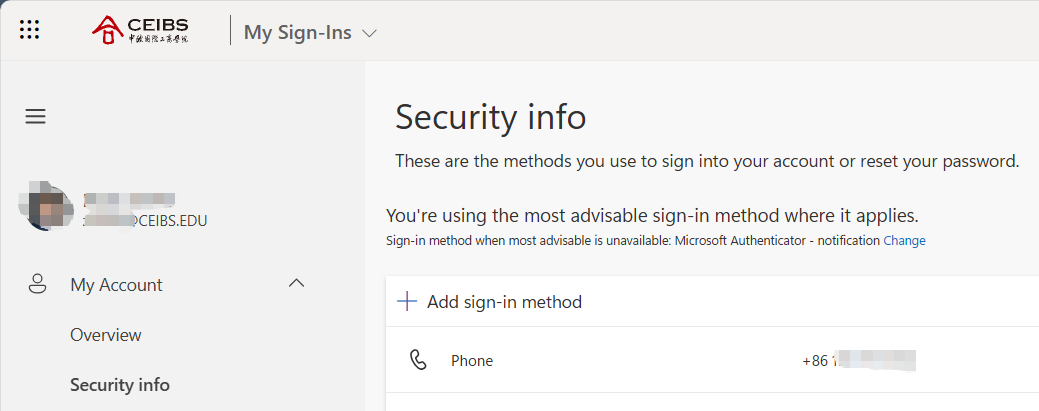
- Select Security Info in the left menu. Then, select Add sign-in method in the Security info pane.
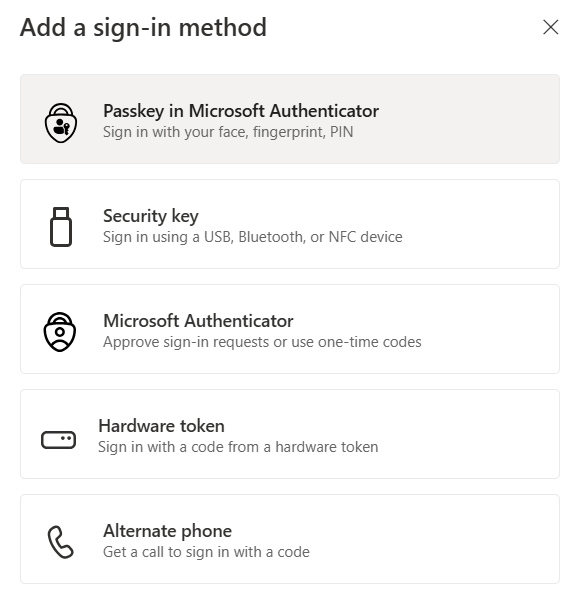
- Select Microsoft Authenticator from the list.
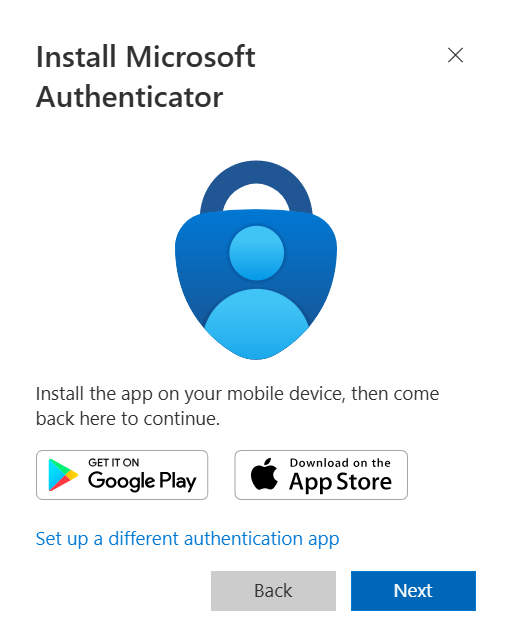
- Since Microsoft Authenticator is already downloaded and installed, click Next.
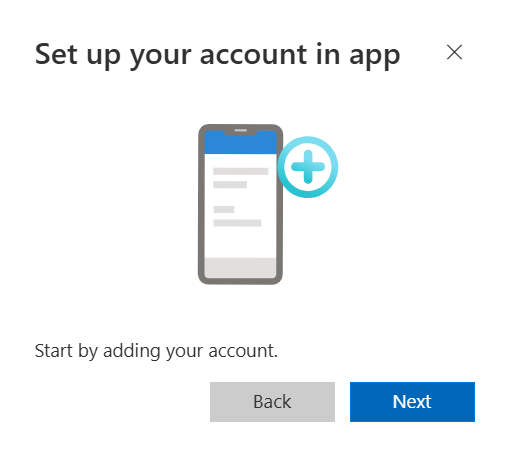
- Select Next in the Set up your account in the app window.
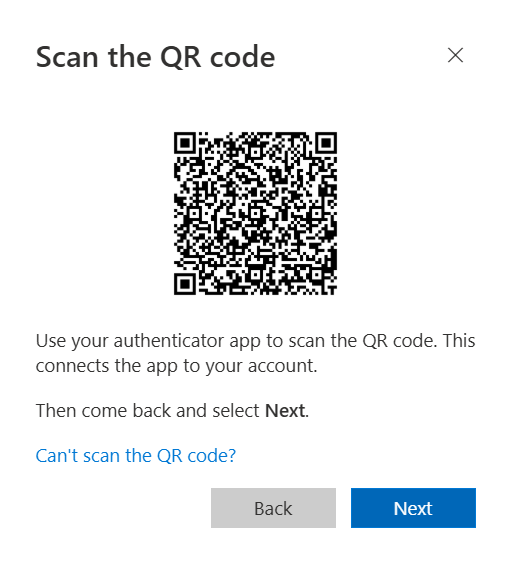
- The window for scanning the QR code appears. Please open Microsoft Authenticator on your iPhone.
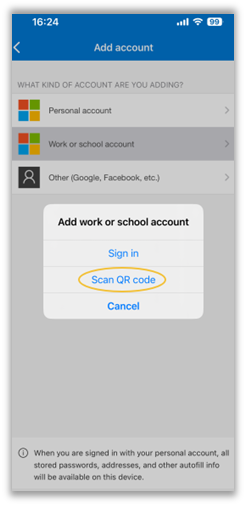
- On your iPhone, open Microsoft Authenticator and tap Add Account > Work or school account > Scan QR code, then scan the QR code from the previous step.
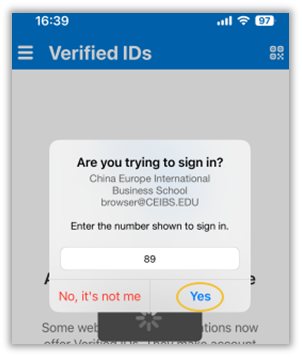
- After scanning QR code, after scanning the QR code, a two-digit number will appear in your computer browser. (The number will change dynamically, refer to the actual situation)
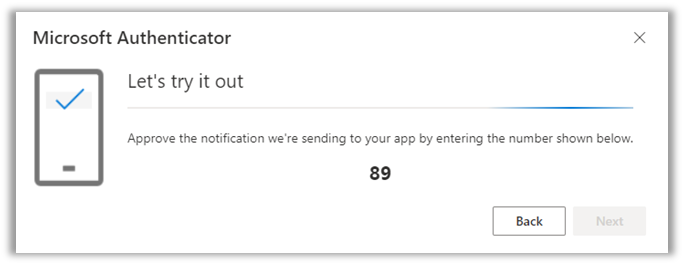
- Enter the same number mentioned above in the Microsoft Authenticator app on your iPhone and tap Yes.
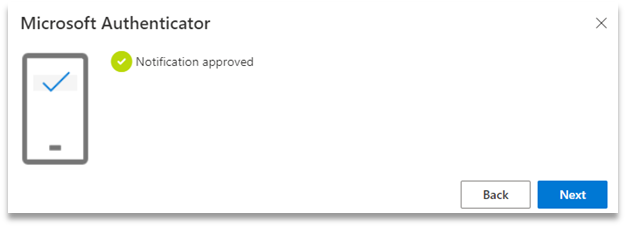
- The notification has been approved. Click Next to complete the multi-factor authentication setup.
- On the Security info page, check that Sign-in method when most advisable is unavailable is Microsoft Authenticator - notification.
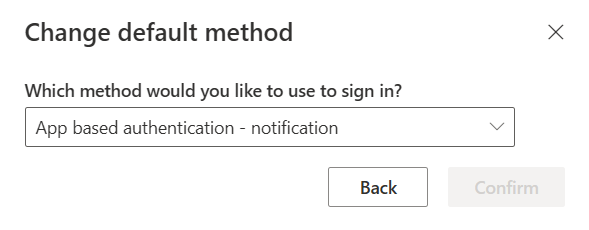
- If it is not Microsoft Authenticator - notification, please click Change on the right.
- Change the default method, select App-based authentication - notification, then click Confirm.
- Setup complete.