
CEIBS provides M365 email services. You can set it up on Outlook for desktop devices.
Important Notes:
CEIBS M365 email service is based on the Microsoft Exchange Online cloud platform. The desktop version of Outlook that supports CEIBS M365 email accounts is Outlook for Mac.
Please follow this guide to download and install Microsoft 365 Apps.
It is recommended to use Legacy mode.
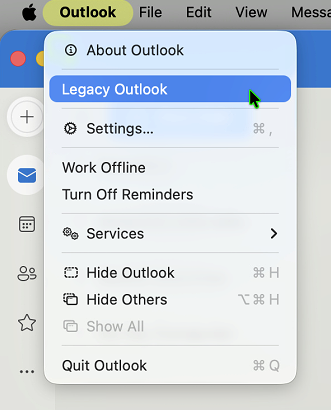
- Click on the Outlook menu in the top-left corner of the screen. Select the option Legacy Outlook from the dropdown menu.
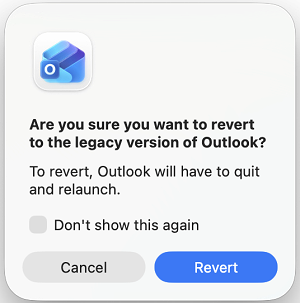
- If prompted, confirm your choice to switch to Legacy Outlook.
Set up CEIBS M365 Email
- Open Outlook for Mac.
- Add a new account in Outlook for Mac. (Please go to Step 2, enter CEIBS M365 email address)
- Add more accounts in Outlook for Mac.
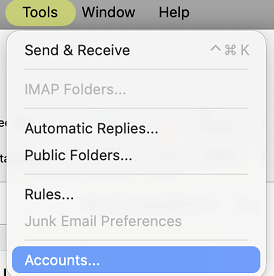
- Select Tools > Accounts.
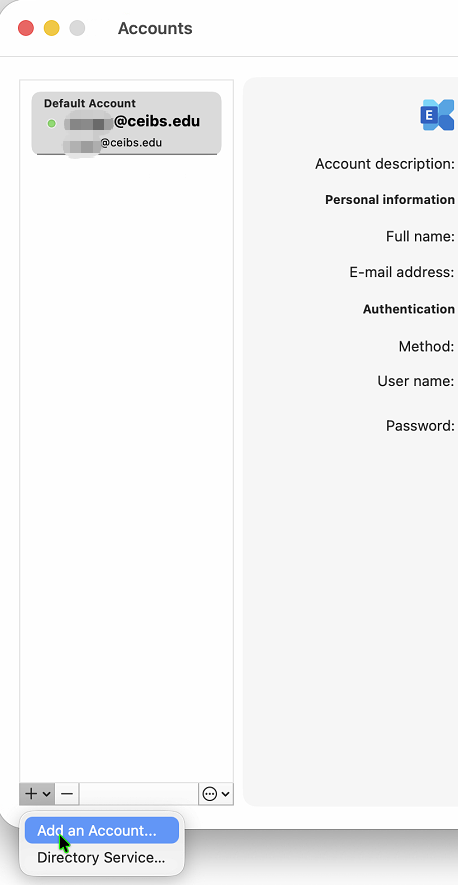
- Select the ➕ > Add Account option at the bottom of the accounts list window.
- Select Tools > Accounts.
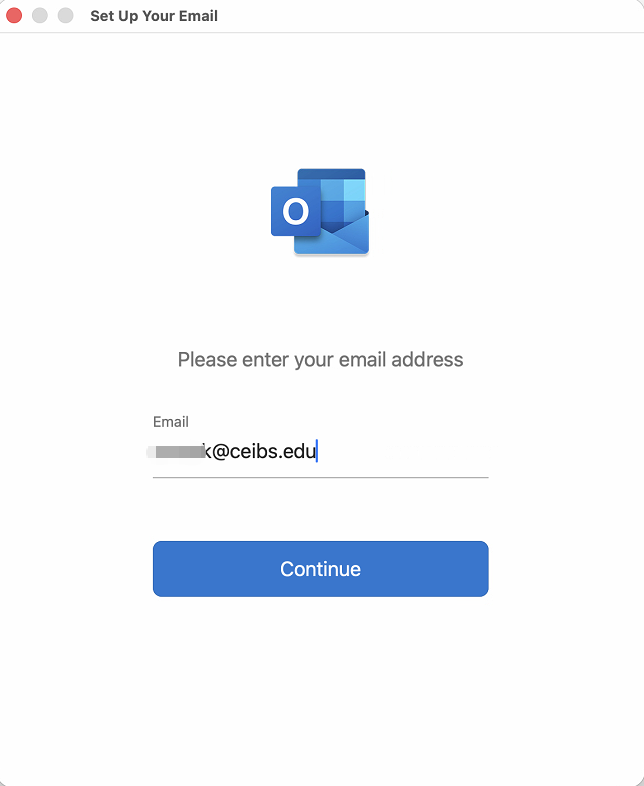
- Enter CEIBS M365 email address, select Continue.
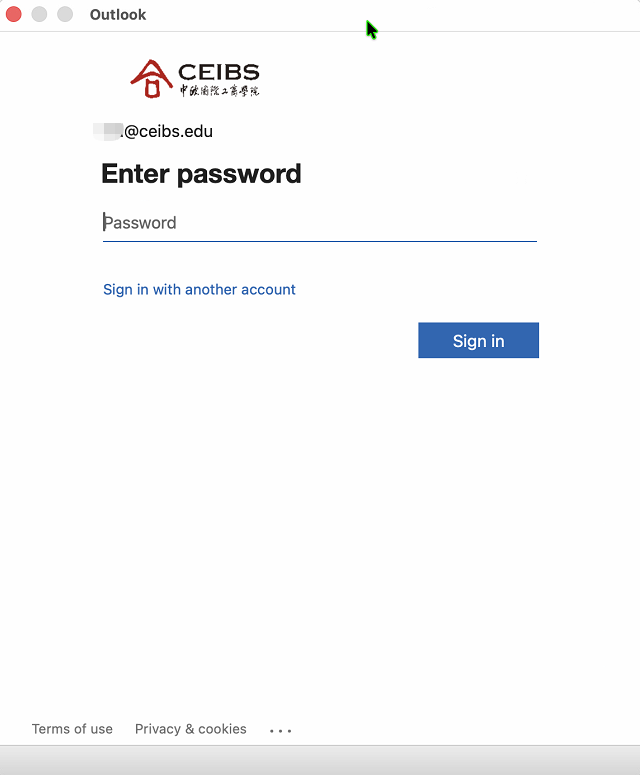
- On the Microsoft sign‑in page that appears, enter the correct password and click Sign in.
- Select Done.
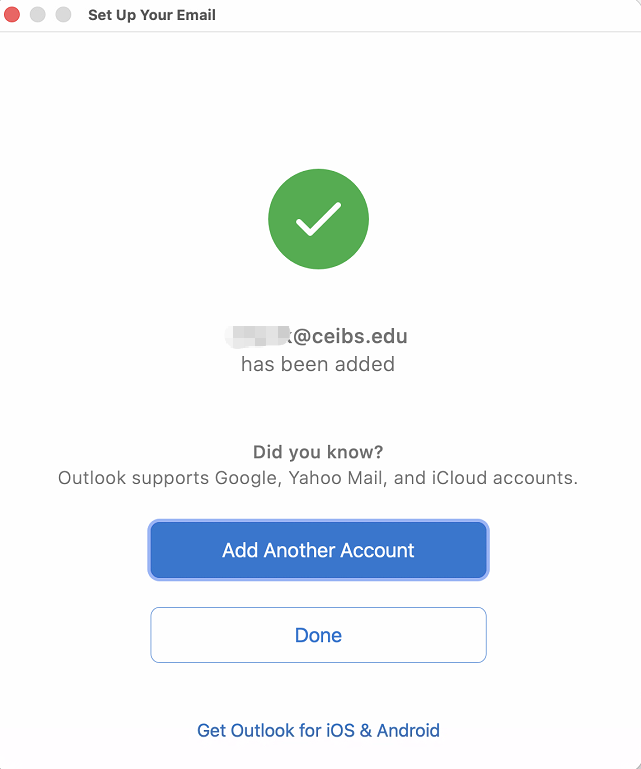
- Setup complete