
CEIBS provides M365 email services, you can set it up on the mail client of your mobile device.
-
Add your Exchange account
- Tap Settings > App(iOS18 and above) > Mail Account > Add Account > Microsoft Exchange.
- If you're adding another account, tap Accounts > Add Account.
-
Enter your email address
- Enter your CEIBS M365 email address, then tap Next. You can also enter an account description.
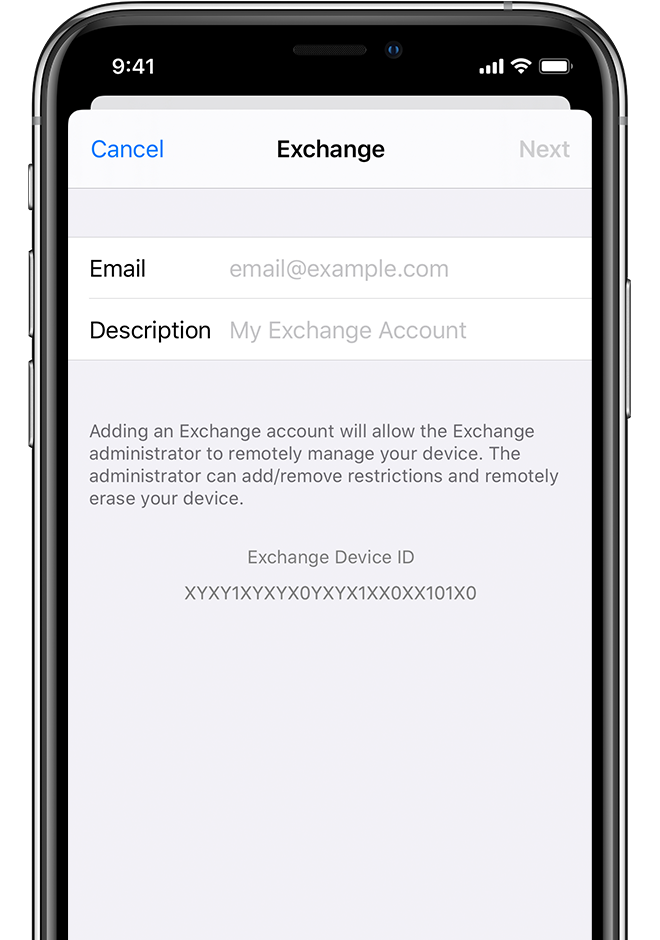
- Enter your CEIBS M365 email address, then tap Next. You can also enter an account description.
-
Connect to your Exchange Server
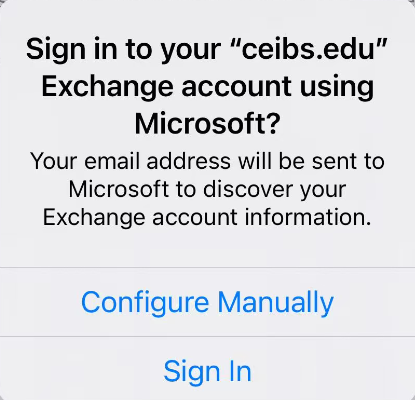
- After you enter your email address, choose Sign In. If prompted to access Microsoft sign-in page, select Continue.
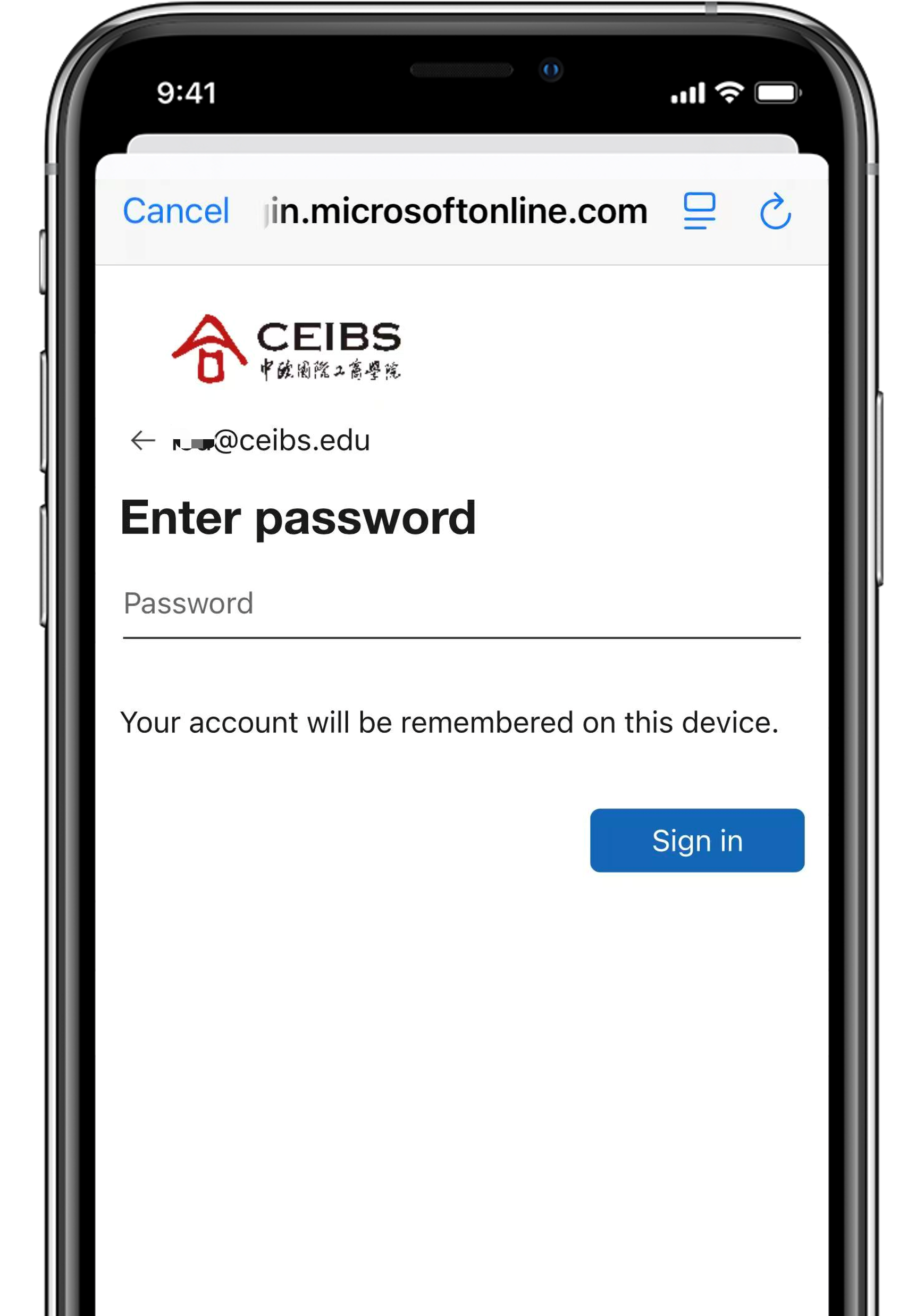
- Enter your email password, then tap Sign in.
- After you enter your email address, choose Sign In. If prompted to access Microsoft sign-in page, select Continue.
-
Sync your content
- You can sync Mail, Contacts, Calendars, Reminders, and Notes. When you're finished, tap Save.
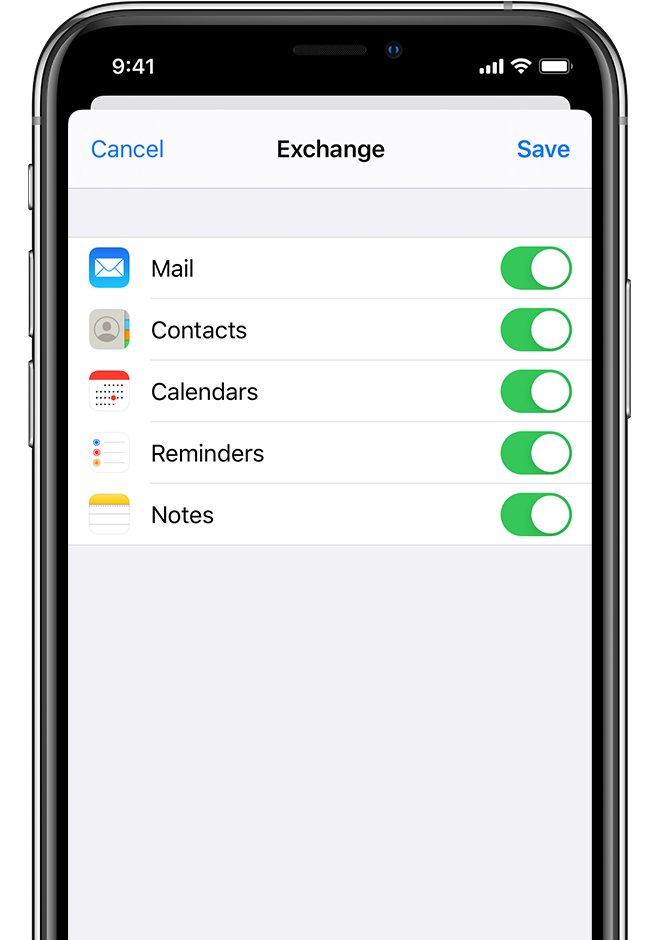
- You can sync Mail, Contacts, Calendars, Reminders, and Notes. When you're finished, tap Save.
-
Setup complete.
Edit your Exchange settings
Tap Settings > App(iOS18 and above) > Mail > Accounts, select your CEIBS M365 account. You can also set up automatic out-of-office replies, and change how often you want Mail to sync.